Diagram types
User flow
A user flow is a diagram of the path a user takes through a product to complete a task, showing each screen, decision and action from start to finish.
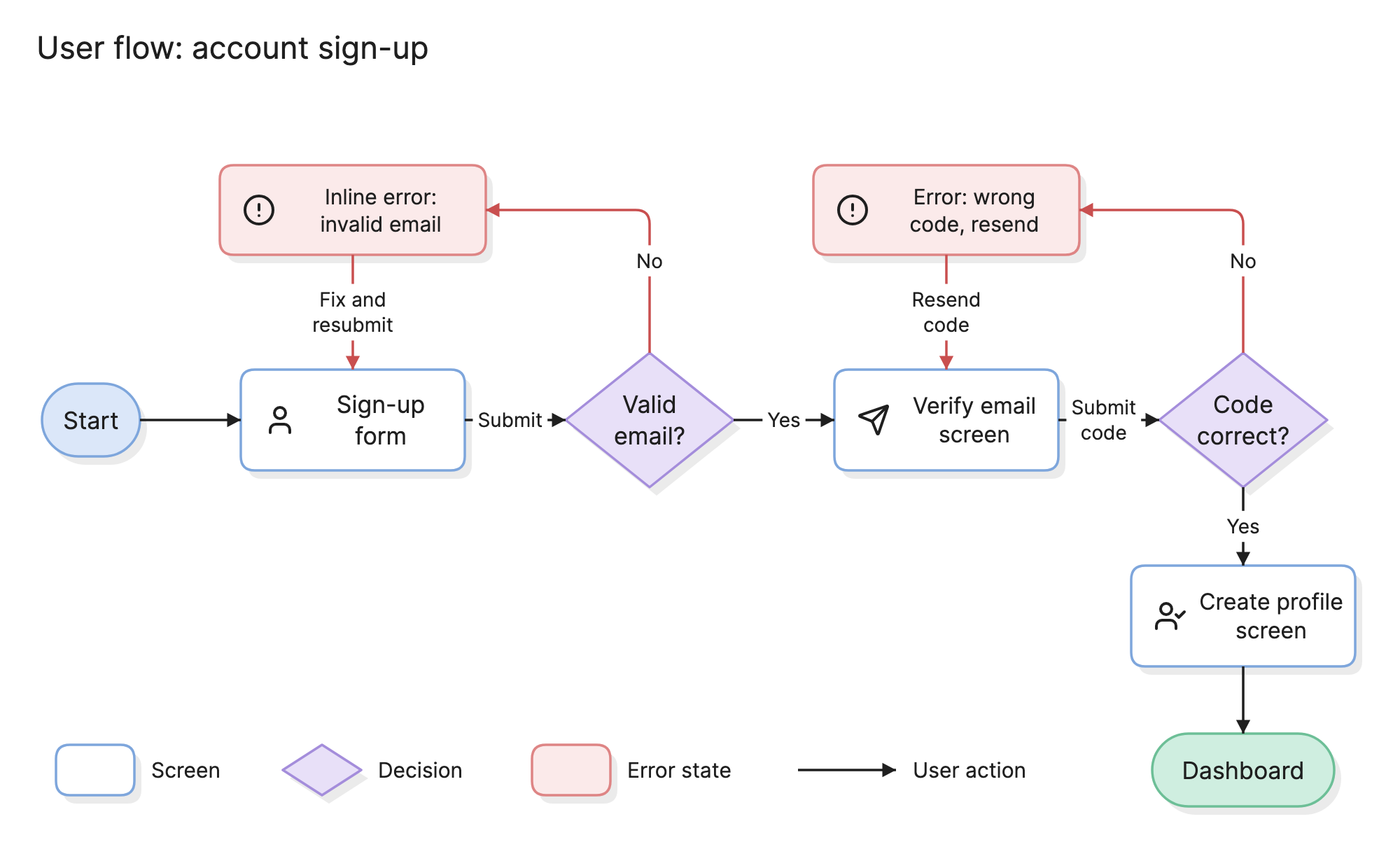
Teams draw user flows to agree on how a feature should work before anyone designs or builds the screens. The diagram makes it obvious how many steps a task takes, where a user has to make a choice and what happens when they get something wrong.
When should you use a user flow?
- Designing a new feature. Settle the sequence of screens before you draw any of them in detail.
- Reviewing a flow that converts poorly. Count the steps between entry and the goal, and look for the decision where people drop off.
- Writing a product spec. A flow is shorter than prose and harder to misread. Engineers can see every state they need to build, including the errors.
- Onboarding. A flow explains how a feature works faster than clicking through it.
What are the parts of a user flow?
A user flow uses a handful of shapes borrowed from the flowchart.
- Entry point. Where the user starts, such as a landing page, a push notification or a link in an email. Draw it as a rounded pill.
- Screens. Each box is a page or a state the user sees. Name it the way the team does, like “Sign-up form” rather than “Step 2”.
- Actions. The arrows between screens, labeled with what the user does: “Submit”, “Tap Skip”, “Enter code”.
- Decisions. Diamonds where the path splits, either because the user chooses or because the system checks something, such as “Valid email?”.
- Error and edge states. What the user sees when validation fails, a request times out or a code expires. These are the most useful part of the flow and the most often left out.
- Exit points. Where the task ends. A flow should have one success exit and may have several others, such as abandoning the task or being sent to a different flow.
What are the types of user flow?
Task flow
A single path with no branches, showing the shortest route through one task. It is useful early on, before the team thinks about exceptions.
Wireflow
A user flow where each screen is drawn as a small wireframe instead of a labeled box. It takes more space but shows layout and flow together.
Branching user flow
The most common form, and the one in the example above. It includes decisions, error paths and alternate routes, so it describes what the product actually does.
How do you read a user flow?
Start at the entry point and follow the arrows. In the sign-up example, the user lands on the sign-up form and submits it. The first diamond checks whether the email is valid. If not, the red path leads to an inline error and back to the form, so the user can fix it and submit again.
If the email is valid, the user reaches the verify email screen and enters the code they were sent. The second diamond checks the code. A wrong code sends them to an error state that offers to resend it, and then back to the same screen. A correct code takes them to the create profile screen and finally to the dashboard, which is the exit point.
Reading it this way surfaces the questions worth asking. How many times can a user request a new code? What happens if they close the app on the verify screen and come back later?
How do you create a user flow?
- Pick one task and one user. “A new user creates an account” is a flow. “Onboarding” is several.
- Name the entry point and the goal. Where does the user start, and what does done look like?
- List the screens in order. Write the happy path first, one box per screen, and label every arrow with the user’s action.
- Add the decisions. Wherever the system checks something or the user chooses, add a diamond with a question on it and label each branch.
- Add the error states. For every decision, draw the path where the answer is no. Decide whether the user goes back, forward or out.
- Walk through it with the team. Follow a real example end to end, then the worst case, and fix what does not match.
What are common user flow mistakes?
- Only drawing the happy path. The errors and retries are where users get stuck, and the engineers have to build them either way.
- Mixing tasks. A flow that covers sign-up, onboarding and the first purchase is too big to read. Split it and link the pieces.
- Unlabeled arrows. An arrow with no label hides what the user had to do. Write the action on it.
- Showing layout. Keep screens as labeled boxes unless you are drawing a wireflow. Layout belongs in the wireframe.
- Forgetting the exits. Users leave. Show where they can abandon the task and what state that leaves them in.
How does a user flow compare with other diagrams?
| Diagram | What it shows | Use it to answer |
|---|---|---|
| User flow | The screens and decisions in one task | What steps does a user take to do this? |
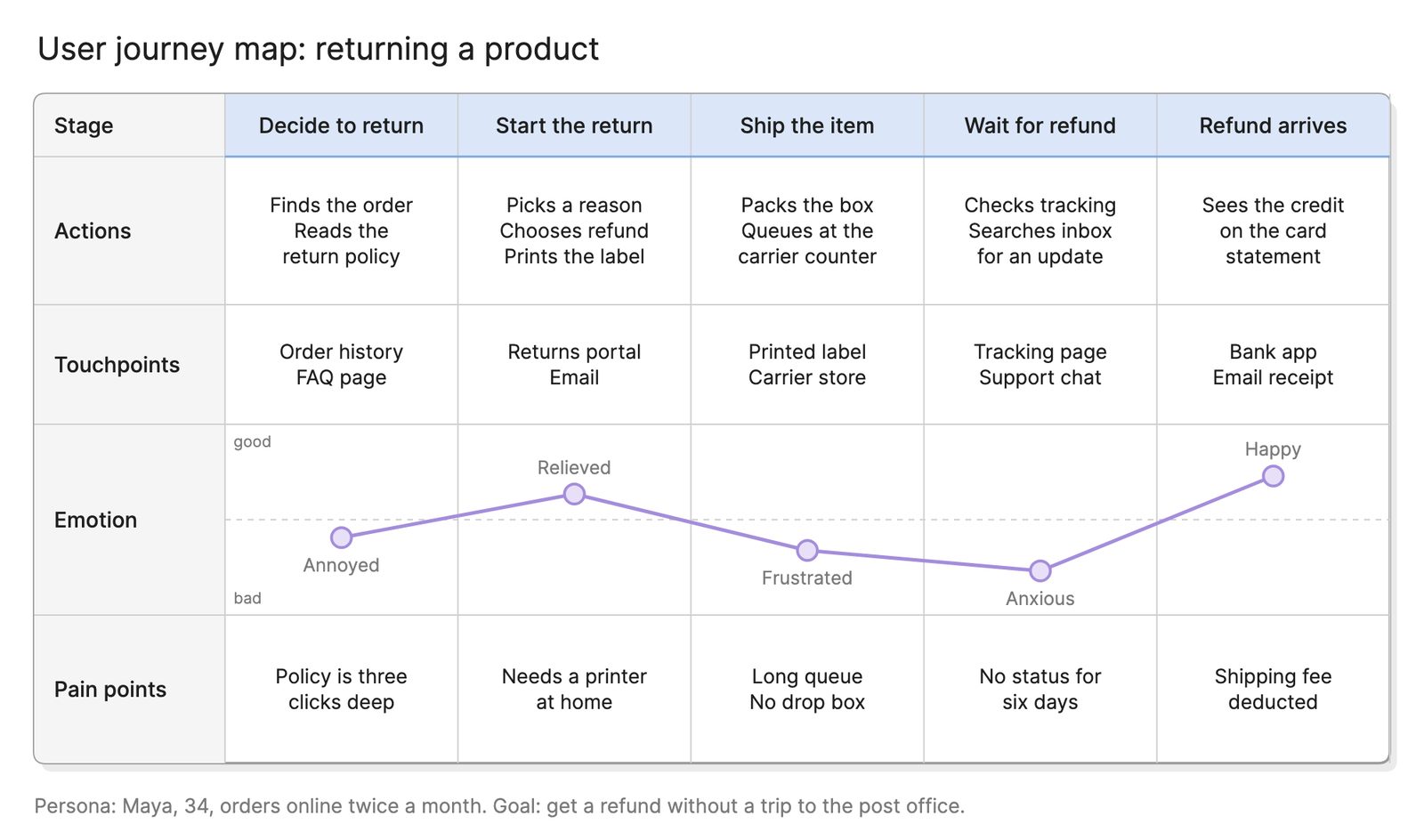
| User journey map | A user’s experience over time, inside and outside the product | Where is the experience good or bad? |
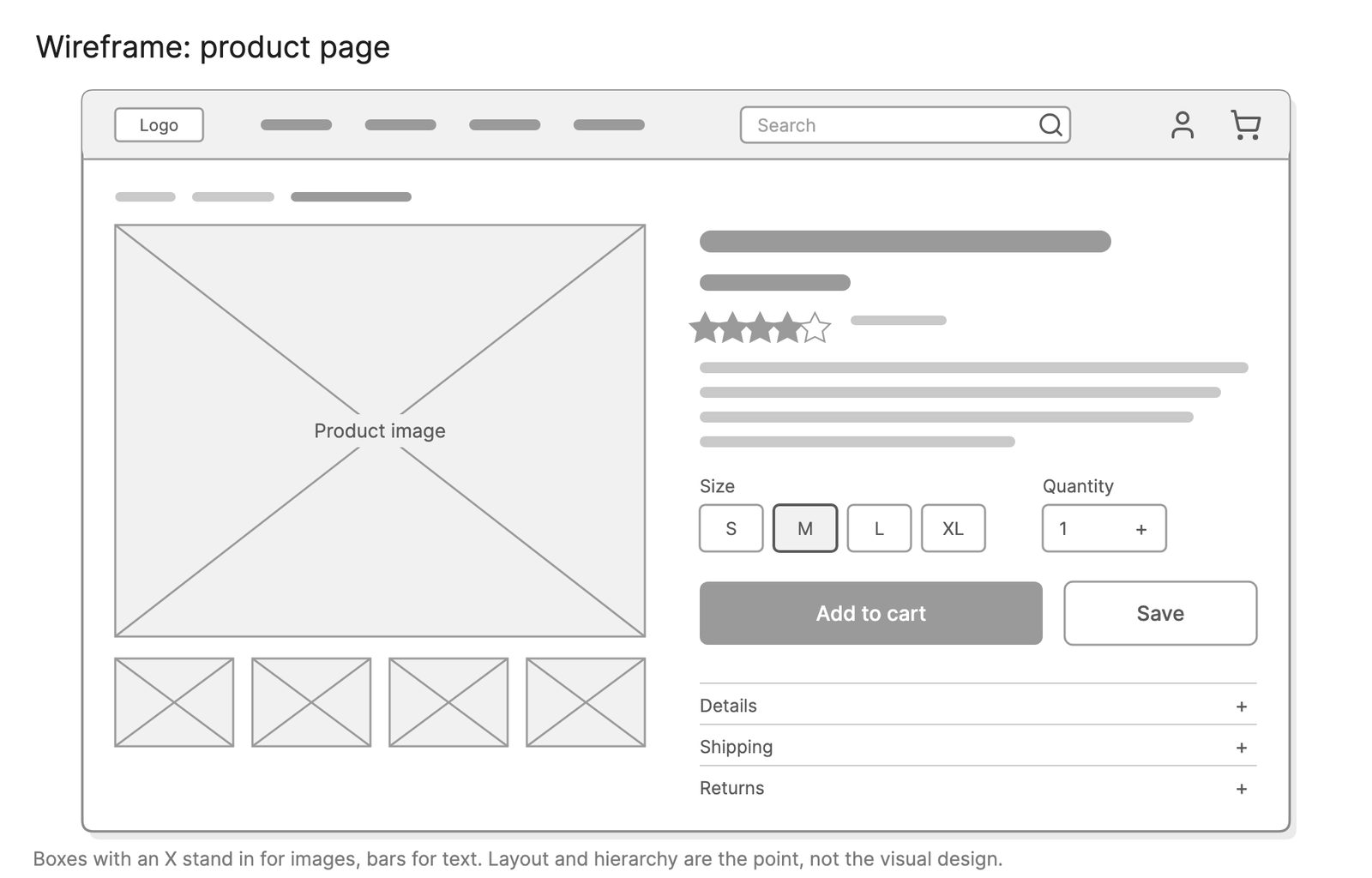
| Wireframe | The layout of one screen | What goes on this screen, and where? |
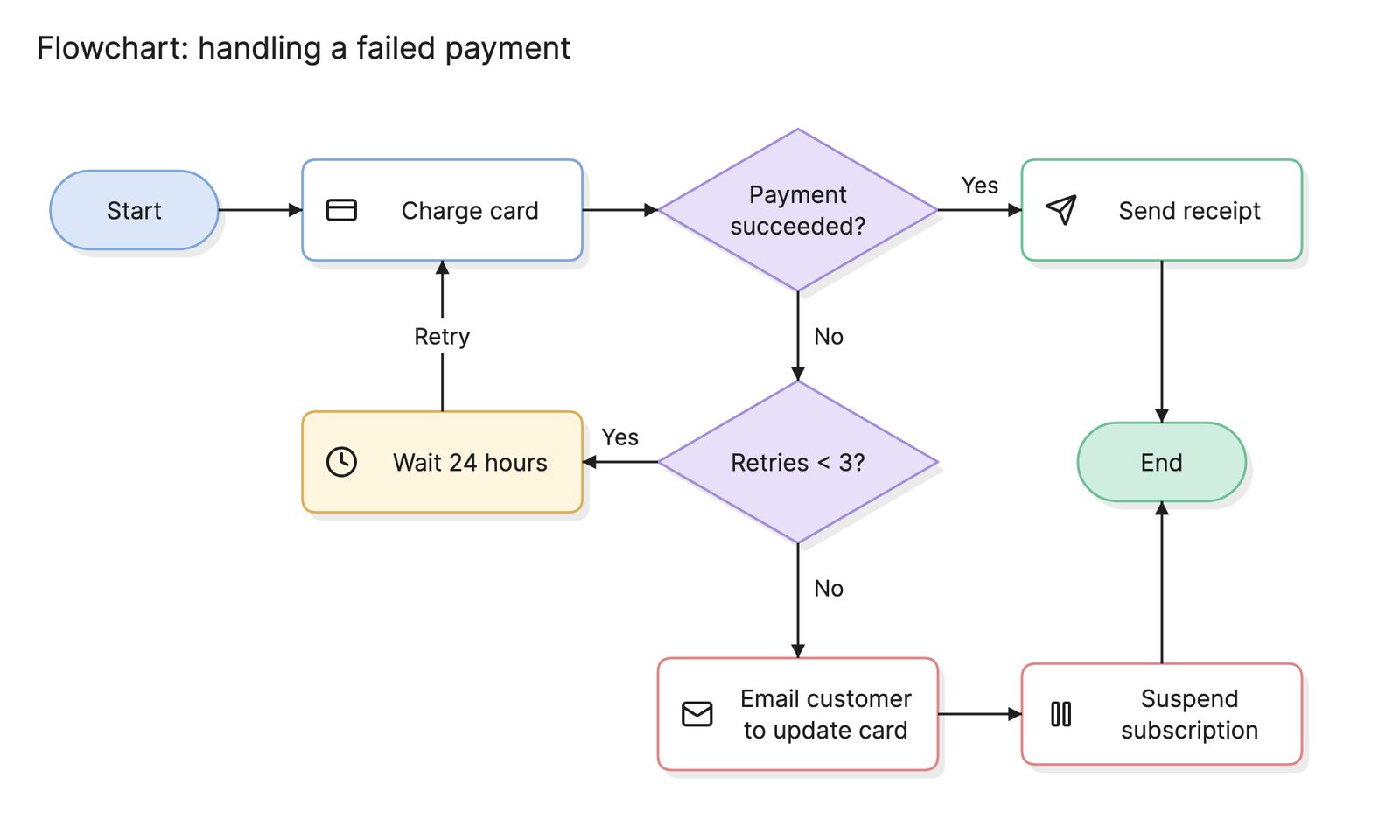
| Flowchart | Any process, with or without a user | How does this process run? |
What tools can you use to make a user flow?
The right tool depends on how early you are and who needs to edit the result.
- Whiteboards and sticky notes. Fast for a first pass with the team in the room, but you have to redraw the result to keep it.
- Design tools. Good once the screens exist, since you can place real mockups in the flow, but harder to keep in sync as the design changes.
- AI diagramming tools. Tools like Eraser turn a written description of a task into a first draft of a user flow that you can edit, which suits teams that already have the steps written down in a spec or a ticket.
Frequently asked questions
-
What is the difference between a user flow and a user journey map?
A user flow shows the screens and decisions inside your product for one task. A user journey map covers a wider span of time and includes what the user does outside the product, how they feel and where they get stuck.
-
What is the difference between a user flow and a flowchart?
A user flow is a flowchart with a specific subject: the path a person takes through an interface. It uses the same shapes, but every box is a screen or a state the user sees, and every arrow is something the user does.
-
What is the difference between a user flow and a wireframe?
A user flow shows the order of screens and the choices between them. A wireframe shows the layout of one screen. Some teams combine the two into a wireflow, where each node in the flow is a small wireframe of that screen.
-
How many screens should a user flow have?
Enough to cover one task from entry to outcome, which is usually five to fifteen. If a flow grows past that, it probably covers more than one task. Split it by goal, such as one flow for sign-up and another for checkout, and link them where one leads into the other.