Guide
How to open a VSDX file without Visio
View a .vsdx file for free in the browser with Microsoft 365, then upload it to Eraser to turn it into a diagram you can edit.
Someone sends you a network diagram, a process map or an architecture diagram as a .vsdx file. That is a Visio drawing, in the format Visio has used since Visio 2013, and you do not have Visio.
Looking at it is free with a Microsoft 365 work or school account, and this guide starts there. To change it, you upload the file to Eraser, which converts it into a diagram you can edit. Allow about ten minutes, most of it for checking the result.
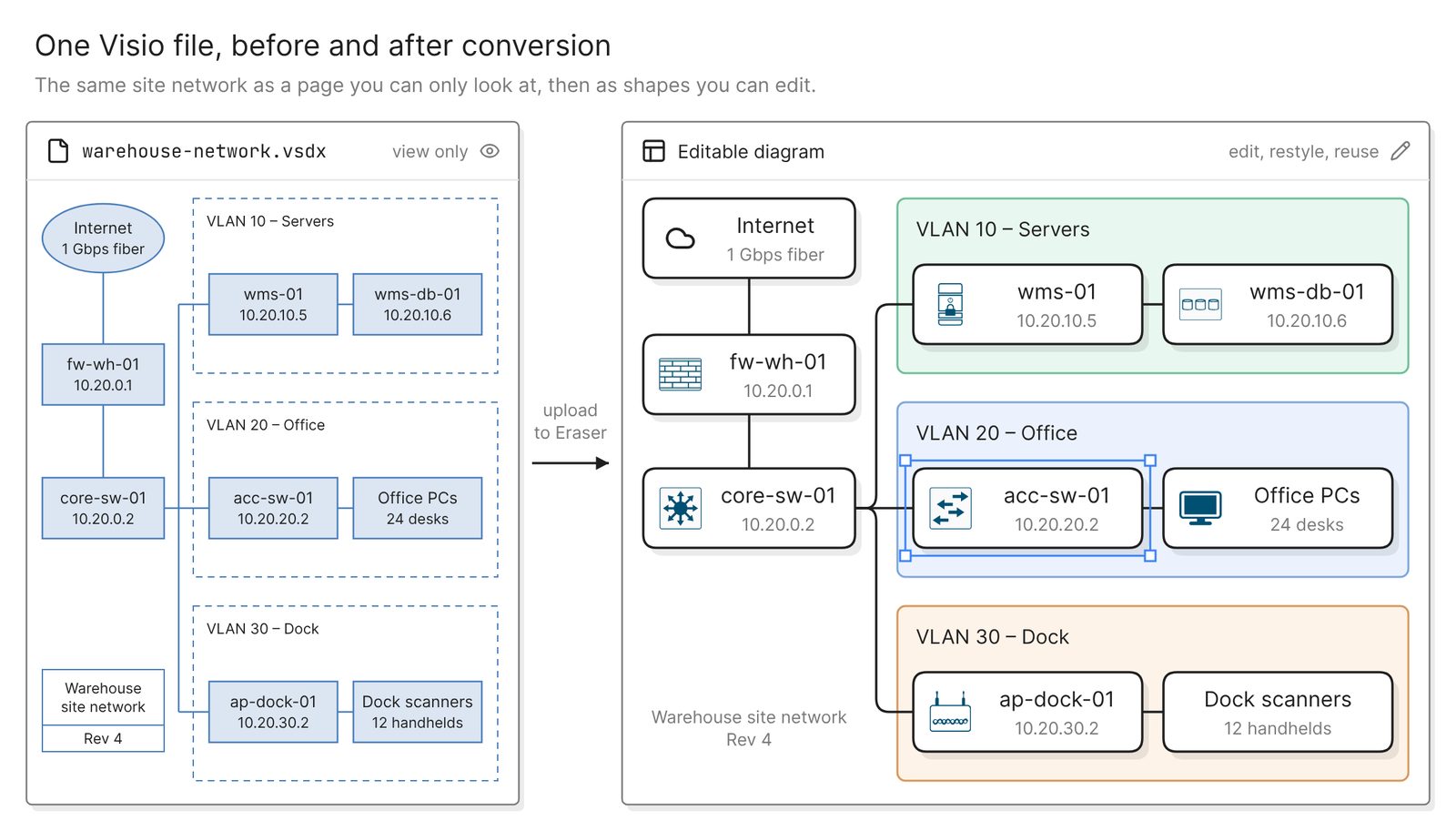 Example: one Visio page of a site network, and the same network as shapes you can edit
Before you start
You need:
- The
.vsdxfile, 10 MB or smaller - A Microsoft 365 work or school account, to view it
- Access to Eraser, to edit it
Eraser converts the file with AI, and the file is sent to the AI in full. If the drawing holds passwords or keys, do not upload it as it is. The supported Visio format is .vsdx. The older .vsd format is not on the list.
View the file for free in the browser
As of November 2026, Microsoft’s free viewer is Visio for the web. Its FAQ says “you can use Visio for the web without a license to view basic Visio files”. Sign in to Microsoft 365, upload the file to OneDrive for work or school or to a SharePoint library, and select it. It opens in a browser tab, read-only, on Windows or a Mac.
It needs a work or school account. Microsoft’s pricing page says personal accounts such as outlook.com are not supported.
The standalone viewers are gone or out of date. Visio Viewer 2016 left support in October 2025. The Download Center still lists the Visio 2013 Viewer, which runs inside Internet Explorer 8, 9 or 10. The iOS viewer app was retired in August 2023.
Viewing is where this route stops. You cannot move a shape, correct a label, restyle the page or reuse part of it. The same FAQ says you “will not be able to edit a detailed network diagram without a Visio Plan 1 or Visio Plan 2 subscription”. If the file has to stay a Visio file, that is the route.
If looking is all you need, stop here.
Step 1. Upload the file to Eraser
Open AI chat in an Eraser file and attach the .vsdx file, by browsing to it or dragging it in. You can generate straight away, or add a prompt that says what matters to you:
Convert this Visio diagram. Keep every shape, label and connector, and
keep the VLAN groups as they are.
Eraser AI reads the file and converts it into a native Eraser diagram that you can edit. It is not a flat image of the page. A draw.io file (.drawio) converts the same way. The docs have the click-by-click steps and the full list of file types.
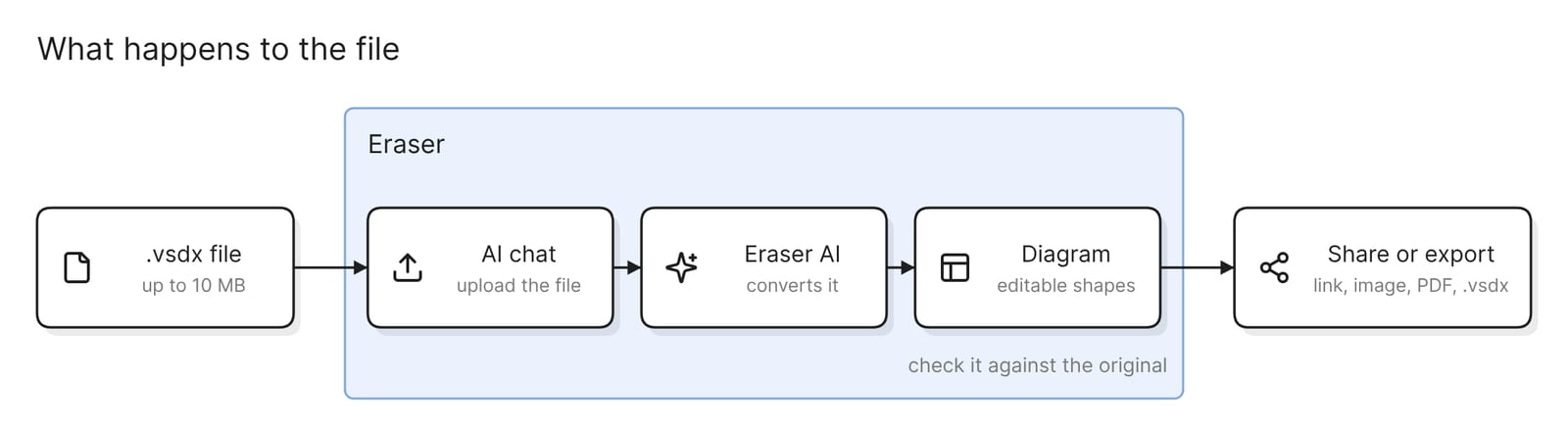 What happens to the file
If all you have is a screenshot or a PDF of the diagram, upload that instead. Eraser redraws images and PDFs as editable diagrams too.
Step 2. Check it against the original
Keep the original open in Microsoft’s viewer in one tab and the result in another. The conversion is done by AI, so treat it as a draft until you have gone through four things:
- Shapes and connectors. Count the shapes on both sides. Then follow each connector and confirm it joins the same two shapes, in the same direction.
- Text. Read the names, addresses and port numbers, the labels on connectors, and any title block or note on the page.
- Grouping and layering. Containers such as VLANs, sites or swimlanes should hold the same shapes as before. Nothing should sit hidden behind another shape.
- Stencil shapes. A shape drawn from a hardware vendor’s stencil may have no equivalent icon. A plain box with the right name in the right place is a good result. A wrong icon is a bad one.
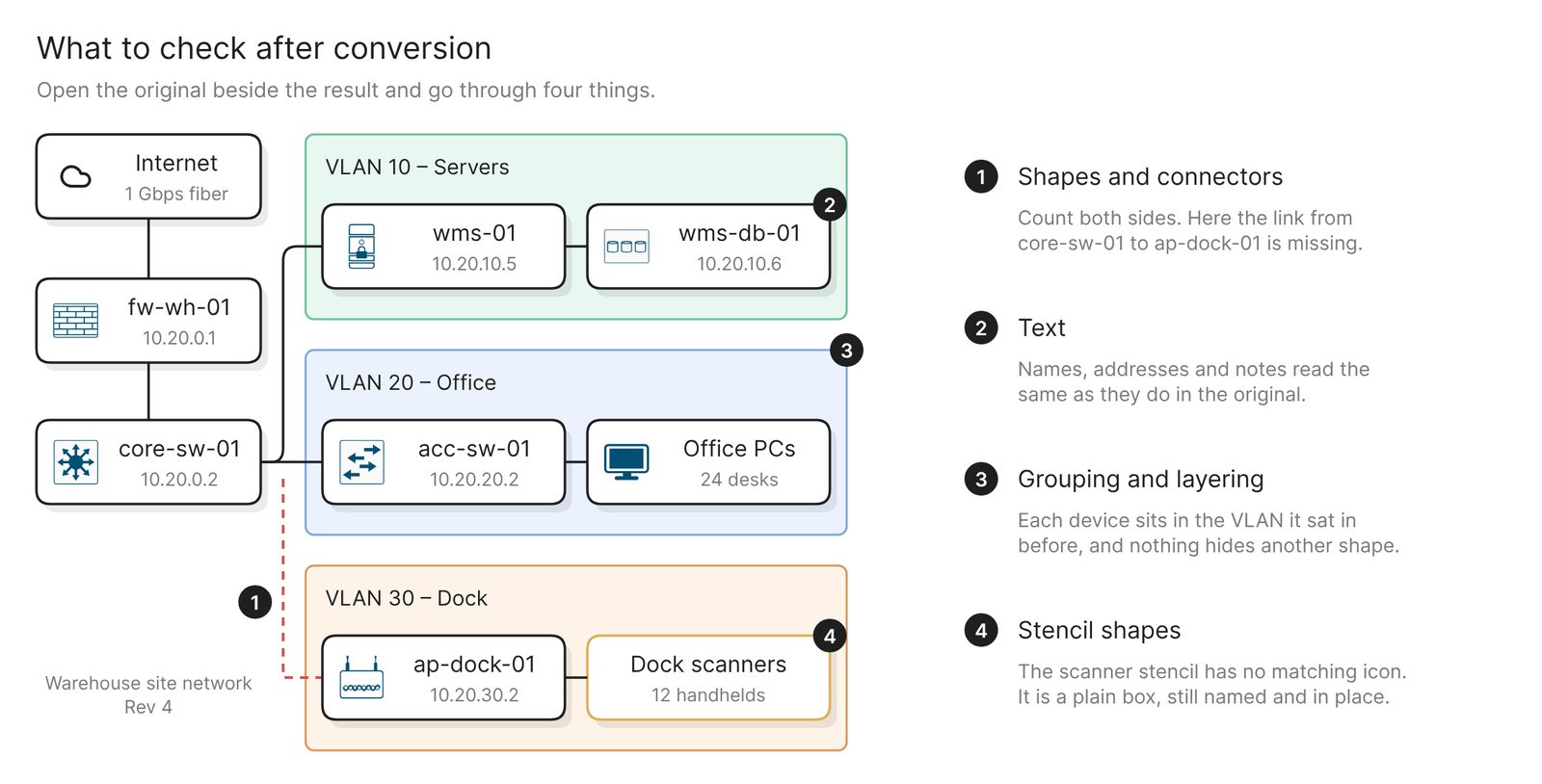 Example: a converted diagram with one missing link and one stencil shape that became a plain box
A Visio file can hold several pages. Note how many the viewer shows, and check that each one you need came across. Write down every difference before you fix any of them.
Step 3. Fix what did not carry over
There are two ways to close a gap. The first is to say it in words. Select the diagram and describe the change in AI chat:
The link between core-sw-01 and ap-dock-01 is missing. Add it.The second is to fix it by hand. The result is an ordinary diagram, so you can move, rename and reconnect anything on it.
A stencil shape that arrived as a plain box can stay a box, or take one of the icons Eraser ships.
If the draft is wrong in many places, convert the file again with a more specific prompt instead of patching it. Either way, run the four checks once more.
Change it now that you can
Each of these prompts starts from the converted diagram.
Restyle it to your team’s standard
Restyle this diagram with one color per VLAN, sentence-case labels and
straight connectors
A team moving off Visio can save its look as a custom style. A style can be generated from a few example diagrams, .vsdx files included, and it then shapes the diagrams the AI draws for the team.
Split a crowded page
Split this into two diagrams: the firewall, core switch and server VLAN
in one, and the office and dock VLANs in the other
A page that carries a whole site is hard to read. Two diagrams that each answer one question get opened again.
Ask for a change in words
Add a second firewall, fw-wh-02, as a standby pair with fw-wh-01, and
connect both to core-sw-01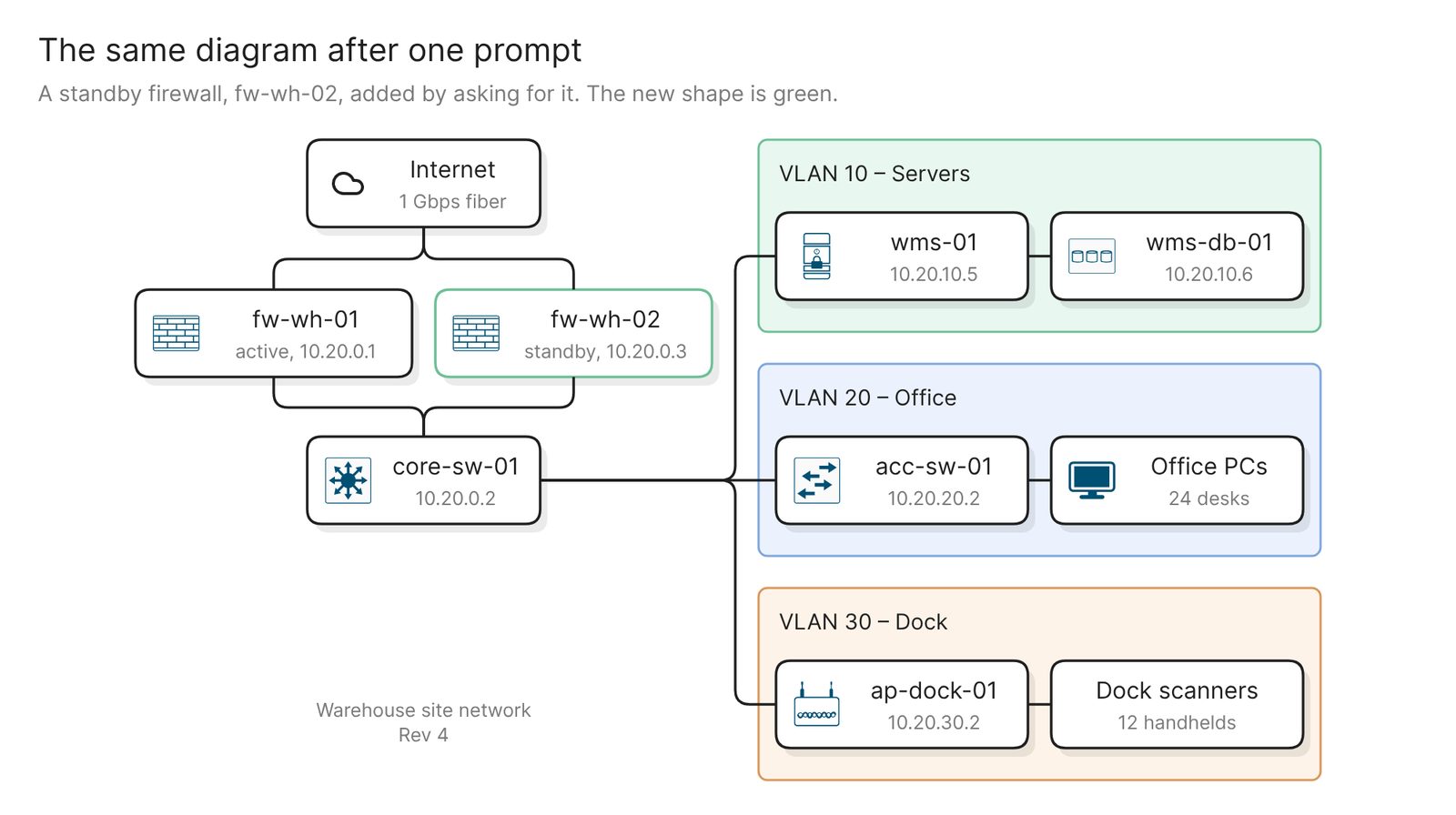 Example: the same network after asking for a standby firewall
From here the next change to the network takes one sentence to record.
Keep it current
The conversion makes a copy. Later edits to the .vsdx in Visio do not reach it, so upload the file again if the original changes. It is less work to make the Eraser diagram the one you maintain, and to export a .vsdx for anyone who still needs Visio.
A finished diagram can be shared with a link, embedded in Confluence or Notion, or exported as PNG, SVG, PDF, draw.io or Visio.
For a network that runs on Cisco Meraki or Catalyst Center, you can skip the file and draw the diagram from the network itself.
Other ways to open a VSDX file
- draw.io. It imports
.vsdxfiles, converts older.vsdfiles in your browser, and needs no account. That makes it the quickest way to an editable copy. Its docs say an imported diagram “may not render identically the same as the original”. - LibreOffice Draw. It opens Visio 2000 to 2013 files,
.vsdxand.vsdincluded. That suits a one-off look or an export to PNG or SVG. It saves in its own ODF Drawing formats, and its guide lists no Visio format to save back to. - Lucidchart. It imports VSDX, VSD and VDX files. As of November 2026, free users can import and view them, and “only users with a paid subscription can edit imported documents”. It is the right choice if your team already works in Lucid.
Best AI diagram tools in 2025 compares tools that draw from a description instead of a file.
FAQ
Is there a free VSDX viewer?
As of November 2026, Microsoft’s is Visio for the web, which shows a file read-only in the browser with a work or school account. Visio Viewer 2016 is out of support and the iOS viewer app is retired. draw.io and LibreOffice Draw, both free, also open the file.
Will the converted diagram match the original exactly?
Do not assume so. The conversion is done by AI, so check it against the original before anyone relies on it.
What about older .vsd files?
Eraser accepts .vsdx, not .vsd, and Microsoft says Visio in Microsoft 365 “does not support legacy (.vsd) files for viewing or editing”. draw.io and LibreOffice Draw both open .vsd. Save the result as a .drawio file or an image, and upload that.
Can I send the diagram back as a Visio file?
Yes. Eraser exports flowchart, cloud architecture, freeform and BPMN diagrams to .vsdx, for colleagues who still use Visio.
Where to go next
If you would rather redraw the diagram than convert it, the network diagram generator and the flowchart generator each draw one from a description. For reference diagrams, see the physical network security diagram and the network diagram for disaster recovery.
For a team leaving Visio, Eraser as a Visio alternative compares the two, and the glossary’s diagram as code page covers keeping diagrams as text under version control.