Guide
How to prepare a solution architecture diagram for review
Put your review board's standard into an AI preset, generate the solution diagram with it, then check the diagram against that standard before the review.
You have a slot at the architecture review board next week. The solution architecture is thought through, and the diagram still gets sent back for an arrow with no protocol, or for giving no sign of which boxes are new. The house standard that asks for these is a wiki page nobody has open while drawing.
This guide moves the standard to where the diagram is made. You put it into an AI preset in Eraser once, generate the solution architecture diagram with the preset applied, and check the result against the same preset before the architecture review. After the one-time setup, a diagram takes about twenty minutes, most of it checking.
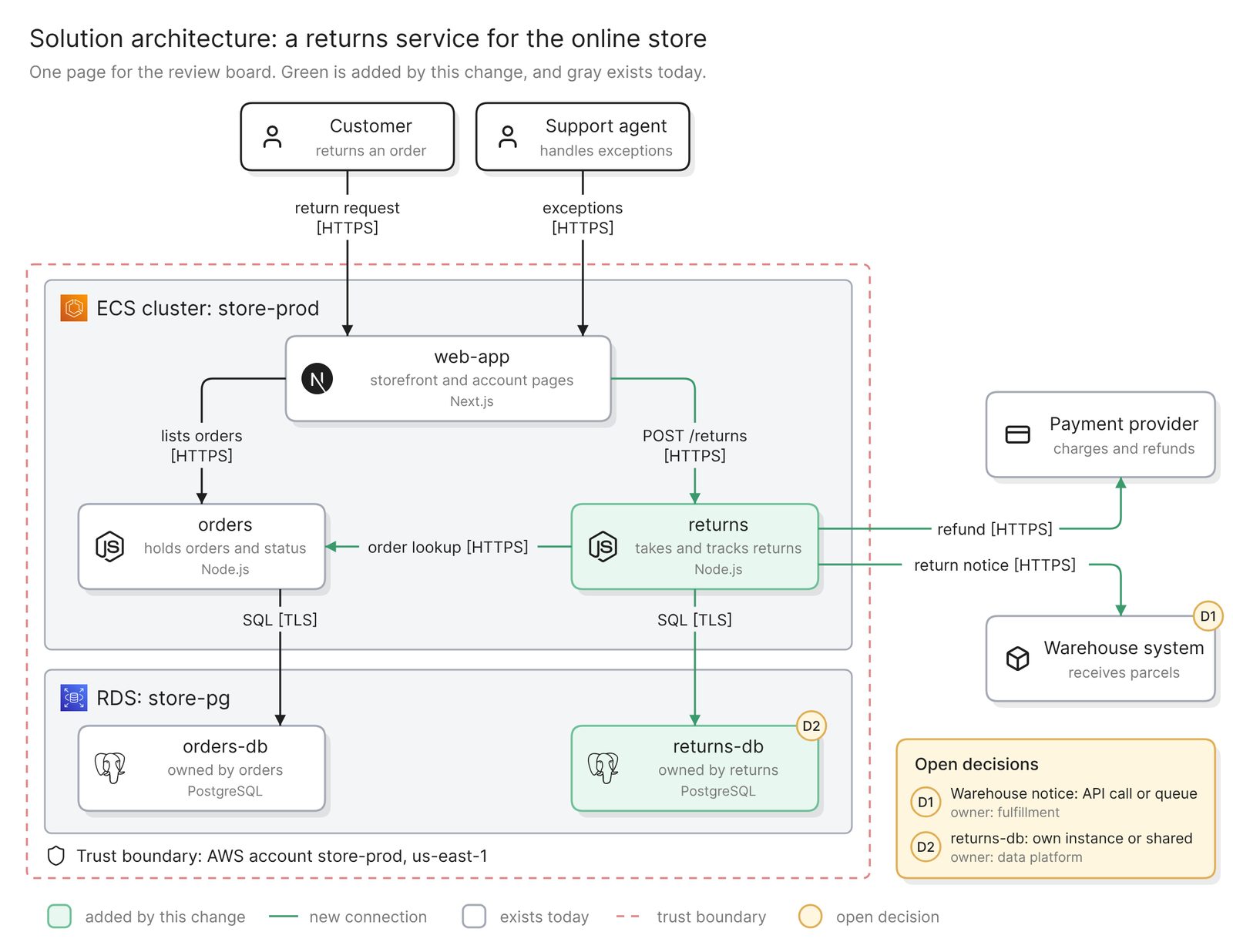 Example: one page for the board, with new parts in green and open decisions listed
Before you start
You need three things:
- Access to Eraser. A team admin sets up the preset, and the whole team can use it
- Your board’s standard in writing, such as a checklist, a template or the last diagram it approved
- A description of the change, or access to the repository it touches
The check in this guide compares the diagram with that standard. It does not judge the design, and no code or scan backs a service that exists only in your description, so that part needs a check by hand.
Step 1. Put the board’s standard into a preset
A preset is a bundle of three things that Eraser applies whenever someone generates with it:
- Rules. Short statements in plain language that the AI must follow. Every rule goes into every generation, so keep each to one requirement.
- A template. An Eraser file with your house layout as an empty diagram, which the AI fills in.
- References. Eraser files the AI reads for context, such as the written security standard or a diagram the board approved.
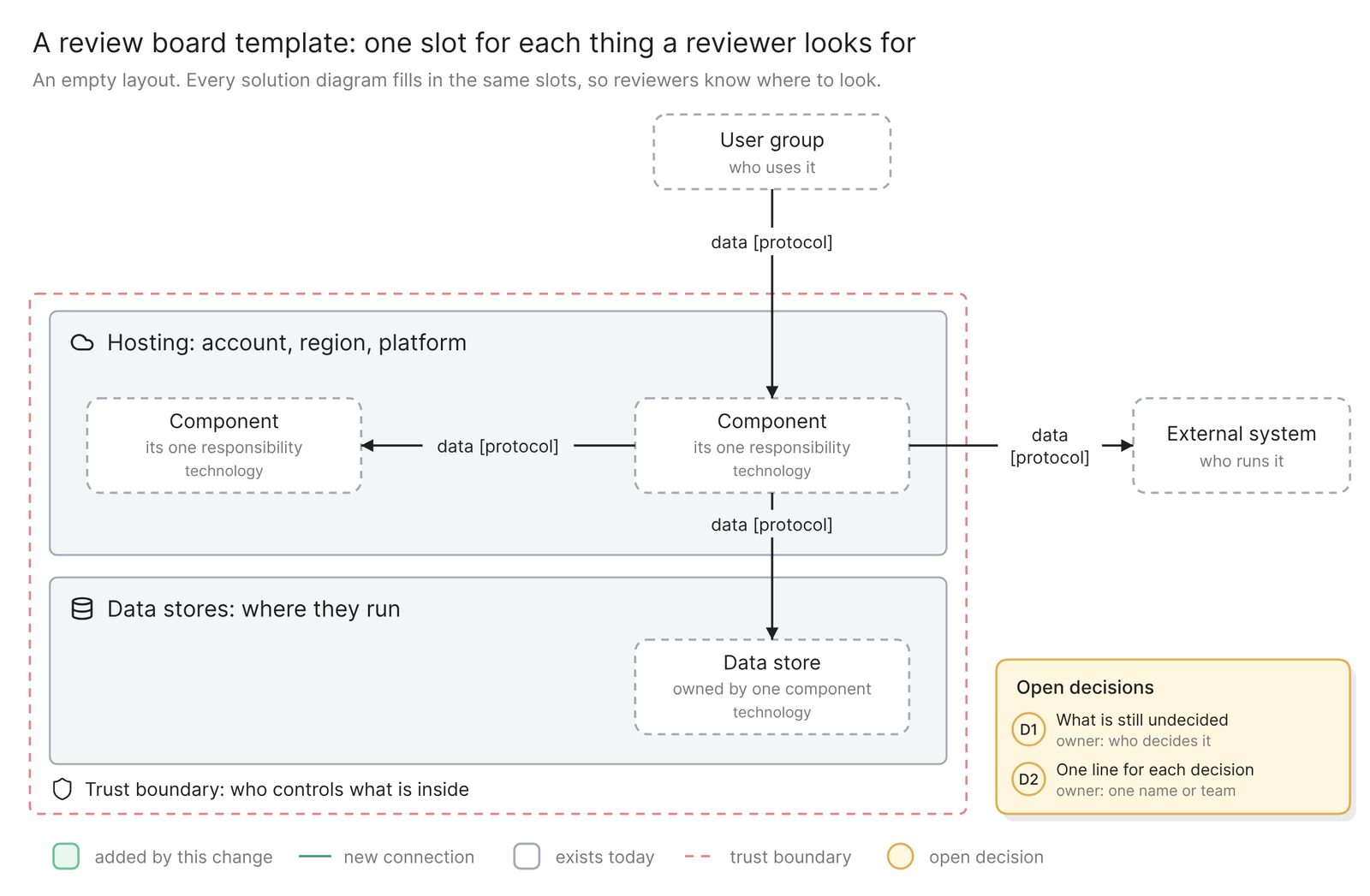 Example: a template diagram with one slot for each thing a reviewer looks for
A review board reads the page for eight things. Each becomes a rule, and a ninth asks for the key:
Show every user group and every external system the solution touches.
Give each component a name, one responsibility and its technology.
Show every data store and name the one component that owns it.
Label every connection with what it carries and its protocol.
Group components by where they run: account, region and platform.
Draw the trust boundary as a dashed red line, external systems outside it.
Color what this change adds green. Leave what exists today gray.
List open decisions in a text box, each with an ID and an owner.
Add a key in a text box that explains every color and line style.
The key is a text box because Eraser’s docs list legends among the things a freeform diagram does not render. Templates and references are used only once published, and an edit waits until you publish again. The docs have the steps.
Step 2. Generate the diagram with the preset applied
Start an AI diagram, apply the preset and describe the change. The rules travel with the preset, so the prompt carries only the change:
Draw a solution architecture diagram for adding a returns service to the
online store. A customer files a return request in web-app. web-app calls
the new returns service. returns looks up the order in the orders
service, refunds the charge through the payment provider and tells the
warehouse system to expect the parcel. It keeps its own returns-db.
Everything we run is in the store-prod AWS account in us-east-1, on the
store-prod ECS cluster and the store-pg RDS instance.
If the existing services live in a repository, attach it, so their names and calls come from the code and only the new service comes from your words. The guide to architecture diagrams from a codebase covers that route. A coding agent can pass the same preset to Eraser’s MCP server.
Read what the diagram cites first. Eraser shows which rules the AI applied and any rule that overrode your request, and it cites the template and references it used. If the template is missing, check that it is published, choose it yourself and generate again.
Then read it the way the board will:
- Responsibilities say what a component does. “Handles returns” repeats the name, and “takes and tracks return requests” does not.
- Each data store has one owner. A second service writing to
orders-dbwill be the board’s first question. - Every connection has a protocol.
refund [HTTPS]can be reviewed, andnotifiescannot. - External systems sit outside the boundary. A payment provider drawn inside it claims that you run it.
- Nothing is invented. A cache you did not describe should not be on the page.
Step 3. Verify the diagram against the standard
Verify checks a freeform diagram and lists every issue without changing it. It compares the diagram with your AI preset and references, the AI chats that built it, any model you attach and any standard you name. AI draws architecture diagrams as freeform unless your team has switched its diagram format to code.
Run it on the diagram. The request is filled in for you, and adding against AWS Well-Architected checks a public standard too.
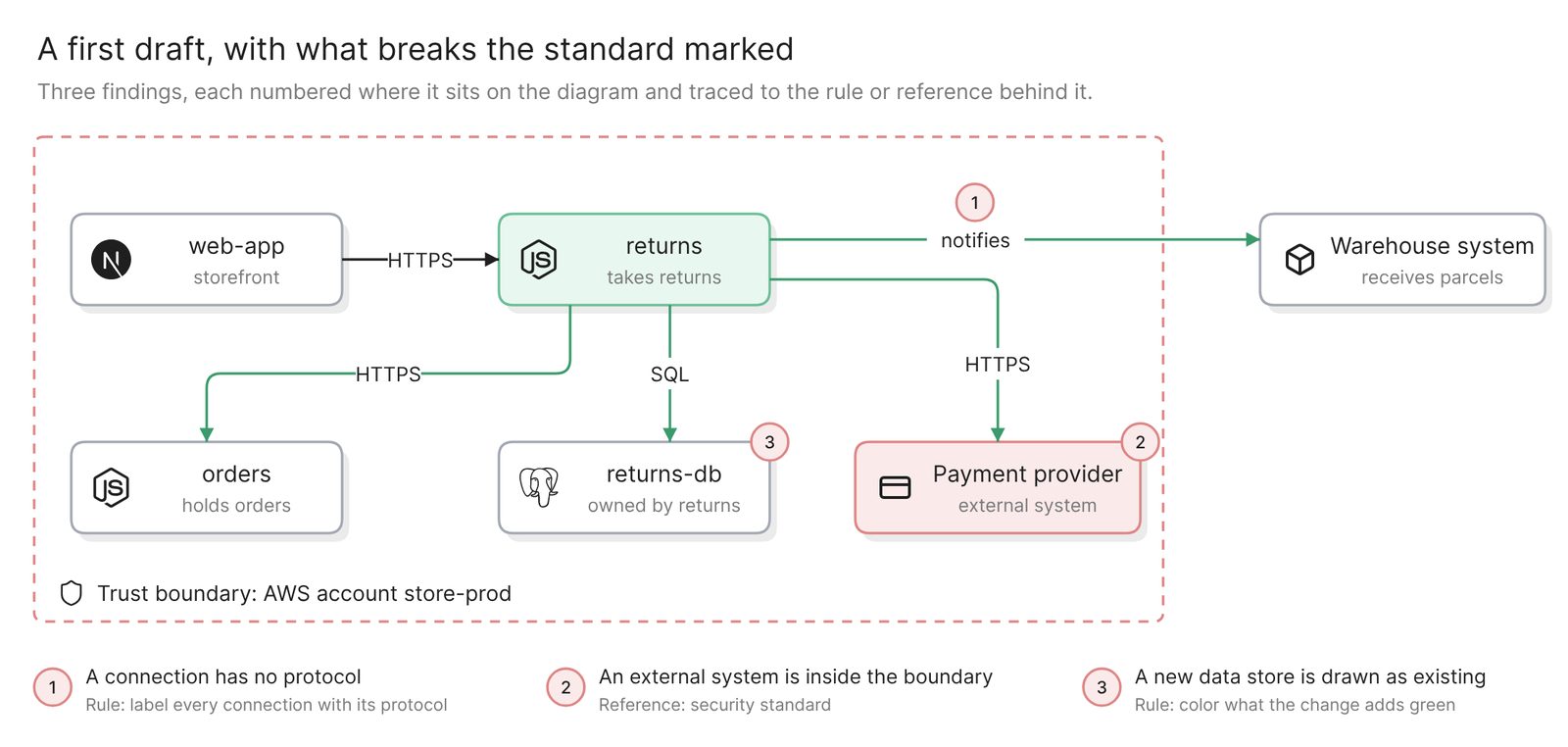 Example: a first draft with three things that break the house standard
Issues come back grouped by source. Fix the real ones by prompt or by hand, flag the wrong ones as not an issue, and run the check again until whatever is left is an exception you will ask the board for.
A clean report means Verify found nothing that breaks the standard. If your team has the cloud account connected as a data source, attach its model and Verify also checks the existing parts against the last scan. Nothing backs the returns service except your description, so check that part yourself.
Step 4. Mark what is new and what is still open
The color rule works only if the AI knew what was new, and you are the one who knows for certain. Compare every green box with your list of changes, then correct the diagram by prompt:
Color returns, returns-db and every connection that starts or ends at
returns green. Make everything else gray. Add a text box titled Open
decisions with two lines. D1: notify the warehouse by API call or by
queue, owner fulfillment. D2: give returns-db its own instance or share
store-pg, owner data platform. Change nothing else.
Write each open decision as a choice between named options, with an owner. A board can rule on “API call or queue” and cannot rule on “integration to be confirmed”. Once decided, each becomes an architecture decision record.
Run Verify once more after the last edit. Nothing backs the colors or the decisions except you, so reread those yourself.
More views for the same review
With the preset still applied, each prompt asks for a different view of the same change.
The opening slide
Draw a context diagram for the returns change. Show returns as one box,
the customer and the support agent who use it, and the systems it
depends on: web-app, orders, the payment provider and the warehouse
system. Label every connection with what it carries.
A context diagram lets the chair place the change before anyone reads a protocol.
One return, step by step
Draw a sequence diagram of one return, from the customer's request to
the refund and the notice to the warehouse. Show what happens when the
payment provider declines the refund.
A sequence diagram shows what state is left when a call fails. Sequence diagrams are diagram-as-code and Verify checks freeform diagrams, so read this one yourself. Technical design document: template and diagrams from your repo covers the document these diagrams sit in.
Before and after
Draw the same diagram as it is today, without returns and returns-db.
Keep every other name and color.
How to draw current state and target state architecture diagrams draws the pair from a cloud account.
Keep it current
A rule you edit applies from the next generation. A template or reference you edit is used only after you publish it again. Then run Verify again on diagrams going back to the board. A team can also make the preset its default, which applies it to every new AI chat.
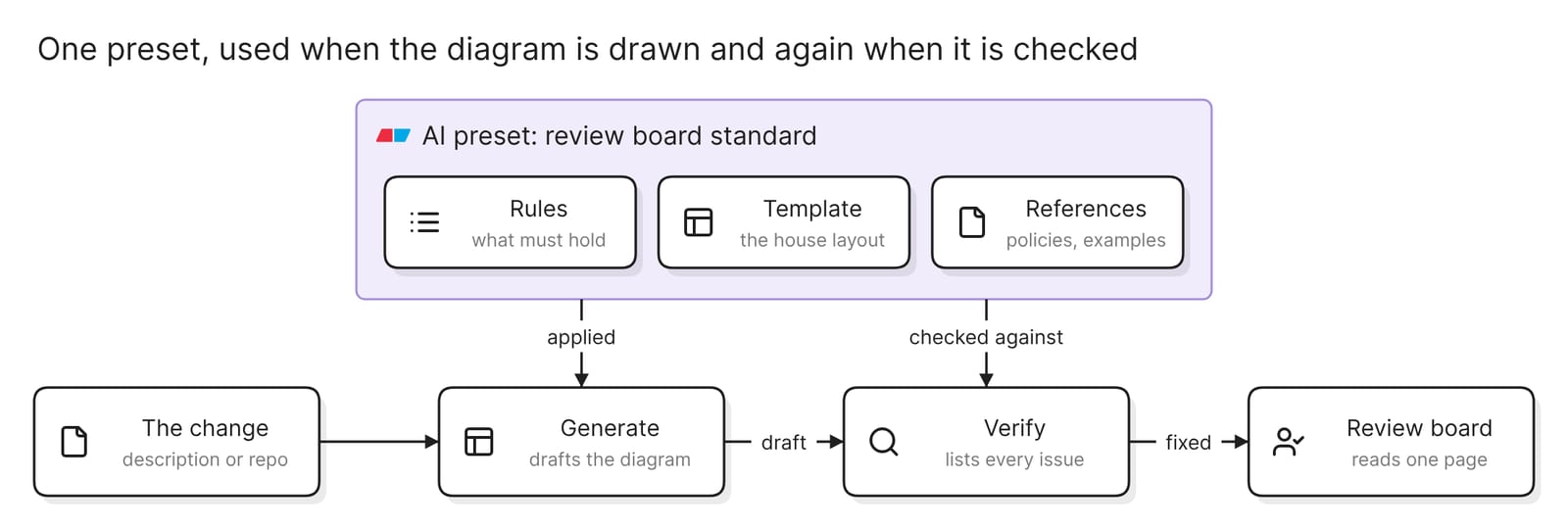 How one preset is used twice, when the diagram is drawn and when it is checked
During the review, signed-in reviewers comment on the diagram, and anyone signed in who can open the file sees the latest Verify report. Afterwards, save a version of the file as the approved one. Then share it with a link, embed it in Confluence or Notion, or export it as an image, a PDF or a slide.
Other ways to prepare a solution architecture diagram for review
- Fill in the board’s template by hand. In draw.io, a custom library can store whole template diagrams, and the editor can be set to load it by default. This is the right choice when the board accepts one file format. Nothing checks the finished drawing against the standard, so the lead reviewer does.
- Model it with C4 in Structurizr. Structurizr describes itself as a “models as code” tool for the C4 model, where one model written in its DSL yields several diagrams. It suits a board that wants every solution in one notation and in version control. Someone maintains the model by hand. C4’s notation page calls the model “notation independent”, so the board’s rules on color and labels still need a home. Best C4 model tools in 2026 compares the options.
- Run a well-architected review. The AWS Well-Architected Tool is a guided self-review. You answer questions about a workload and get identified risks and an improvement plan, and custom lenses add your organization’s own questions. It is the better choice for measuring a workload against AWS’s own best practices. The diagram comes from elsewhere, and the workload form has an optional field for a link to it.
FAQ
What should a solution architecture diagram show for an architecture review?
The users and external systems, each component with its responsibility, the data stores and their owners, every integration with its protocol, where each part is hosted, the trust boundary, what is new, and the decisions still open. Your board’s own standard takes priority over this list.
Is a solution design diagram a different deliverable?
Usually not. Teams use both names for the page that shows how the parts of one solution fit together.
Does a clean Verify report mean the board will approve the design?
No. It means Verify found nothing against the rules and references in the preset. Whether returns should have its own database is a judgment for the board.
Do I need a repository or a cloud account?
No. A description is enough for a design that is not built yet. A repository grounds the existing parts in the code, and a connected cloud account gives Verify a model to check them against.
Where to go next
To try a diagram before setting up a preset, the architecture diagram generator draws one from a description, and the context diagram generator draws the opening slide.
The glossary covers the solution architect role, the team-level design review and enterprise architecture. For reference diagrams, see an eCommerce app on Azure, Transactional workflows with microservices on Google Cloud and Kubernetes on AWS.