Guide
How to draw an application dependency map from a ServiceNow CMDB
Connect ServiceNow to Eraser, scan the CMDB and ask for the map you need: one application's dependencies, a server's impact or a whole location.
A ServiceNow CMDB already records what an application depends on. The record is a set of rows, with configuration items in some tables and the relationships between them in another. Before a migration, an audit or an incident review, someone has to turn those rows into a picture, and that usually means an export and an afternoon of drawing.
This guide is about CMDB visualization one question at a time. You connect ServiceNow to Eraser as a read-only data source, scan it, and ask in plain words for the application dependency map you need. The connection is a one-time job for a ServiceNow admin. After that, each map takes one prompt and a few minutes of checking.
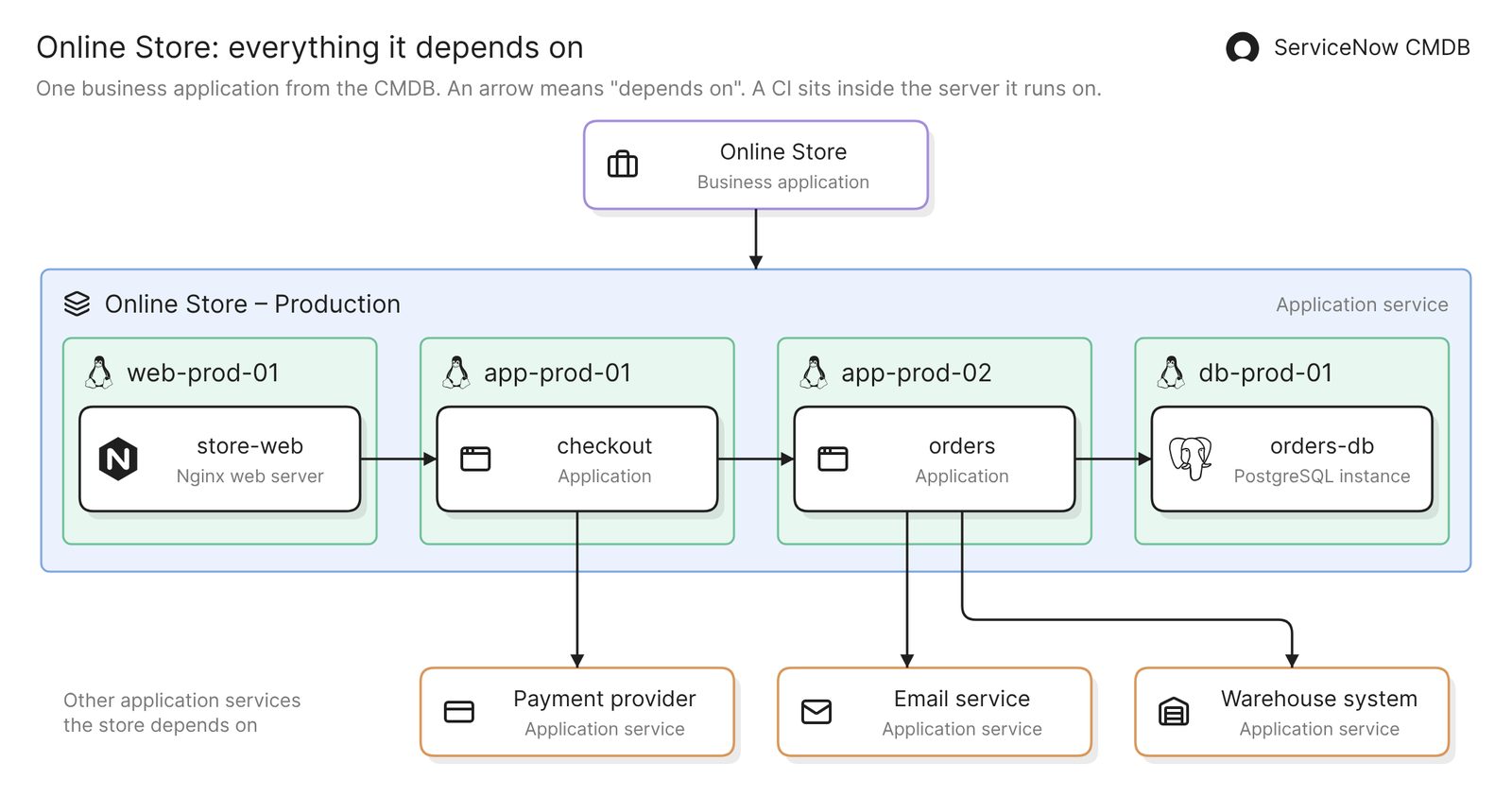 Example: one business application, the application service behind it and what that service depends on
Before you start
You need three things:
- Access to Eraser
- A ServiceNow admin for the one-time setup on the instance
- The name of the application you want to map, as the CMDB records it
Eraser reads configuration items (CIs), their relationships and the application services they belong to, and nothing else. It draws what the CMDB holds, so a relationship that nobody recorded in ServiceNow is missing from the diagram too. Step 3 covers what to check.
Step 1. Connect ServiceNow
The admin creates an integration user on the instance that holds only read roles, and sets up an OIDC provider so the instance accepts Eraser’s sign-in. No password or API key is exchanged. Eraser checks that the user is read-only before it accepts the connection and before every scan, and refuses a user that can do more.
Eraser then scans the instance and builds a model, which is an inventory of the CIs and how they connect. Retired CIs are skipped. You can also set a filter that limits which CIs are imported.
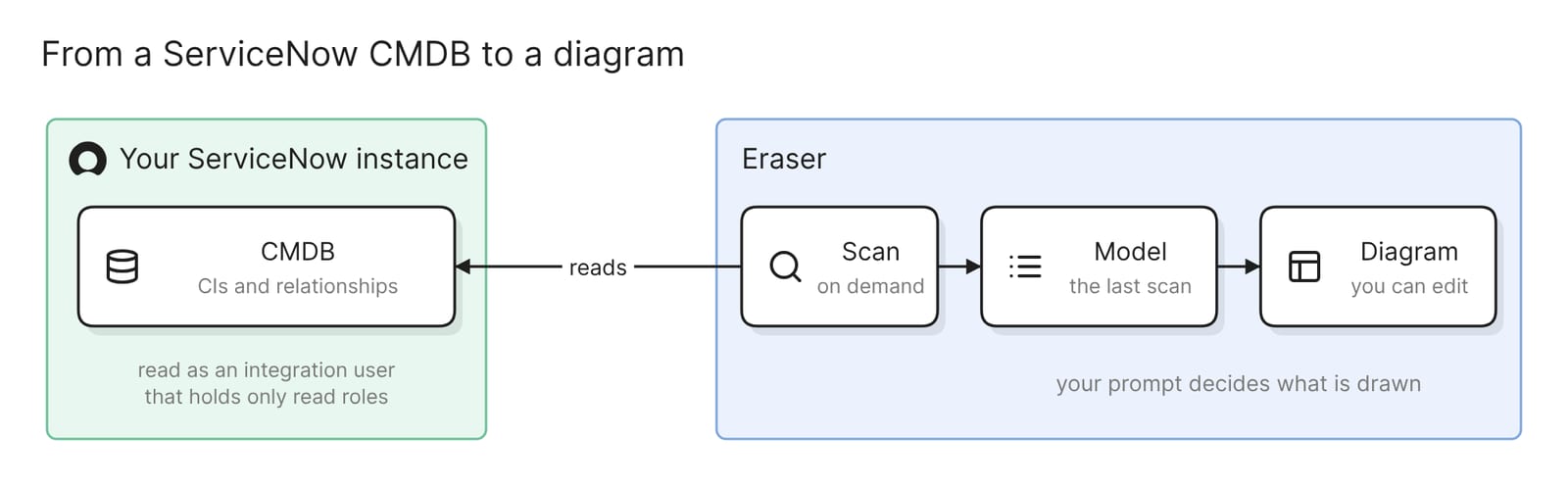 What connecting an instance sets up
The docs have the click-by-click steps. Once the instance is connected, everyone on the team can use its model.
Step 2. Ask for one application’s map
Open AI chat, attach the ServiceNow model, and name the application:
Draw a dependency map for the Online Store business application. Show its
application services, the applications, databases and servers in each one,
and the other services they depend on. Label every CI with its class.
In the example above, the business application sits at the top, with its application service under it, the CIs in that service on the servers they run on, and the other services the store calls underneath. Common CI classes get their own icons, such as Linux servers and PostgreSQL instances.
Ask for one application at a time. A map of everything in the CMDB is too dense to answer a question.
If the CMDB has no business application records, start one level down:
Diagram the Online Store – Production application service from the CMDB,
and the servers it runs on
The result is an ordinary diagram. Keep prompting to add, drop or regroup things, or edit it by hand.
Step 3. Check the map against what you know
The map is only as good as the CMDB. Eraser draws the relationships ServiceNow holds, and those get there by discovery, by import or by hand. A relationship that was never recorded cannot appear.
Check four things before anyone relies on the map:
- The top of the map. If the business application or its application service is missing, the CMDB most likely has no record of it, or nothing relates it to the infrastructure beneath.
- CIs with no lines. A server or database that connects to nothing may be unused, or its relationships may never have been recorded. Ask its owner before you believe either.
- Services outside your network. A payment provider or an email service appears only if someone created a CI for it and related it to the application.
- Things you know are gone. Eraser skips retired CIs. A server that was switched off but never retired in ServiceNow still shows up.
When something looks wrong, open the model in Eraser and find the record. Its fields and connections are what the diagram was drawn from. If the connection is missing there too, correct it in ServiceNow, rescan and ask again.
ServiceNow measures the same gaps across the whole CMDB. Its CMDB Health metrics cover orphan and stale CIs and relationships.
Ask a different question of the same CMDB
Each of these prompts gives a different diagram from the same scan.
What a failure would take down
Show everything that depends on the server db-prod-01, directly or through
another CI, up to the application services affected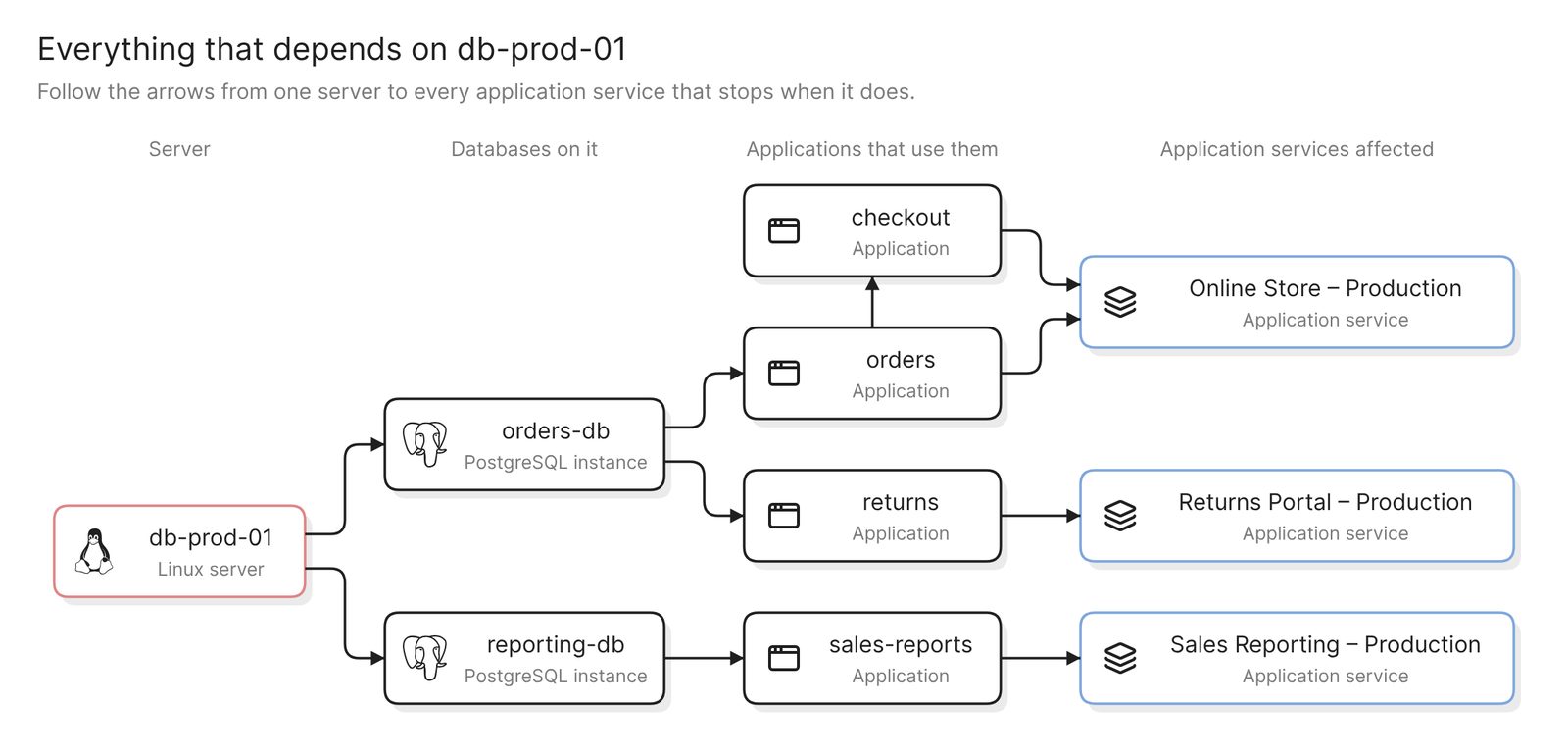 Example: one database server and every application service that stops when it does
This is the map for a change request or an incident review. Read the example from the server outward. The last column is the list of service owners to tell.
What runs in one location
Draw the production servers in the DC1 Ashburn location, grouped by the
application service each one belongs to. Put servers that belong to no
application service in a group of their own.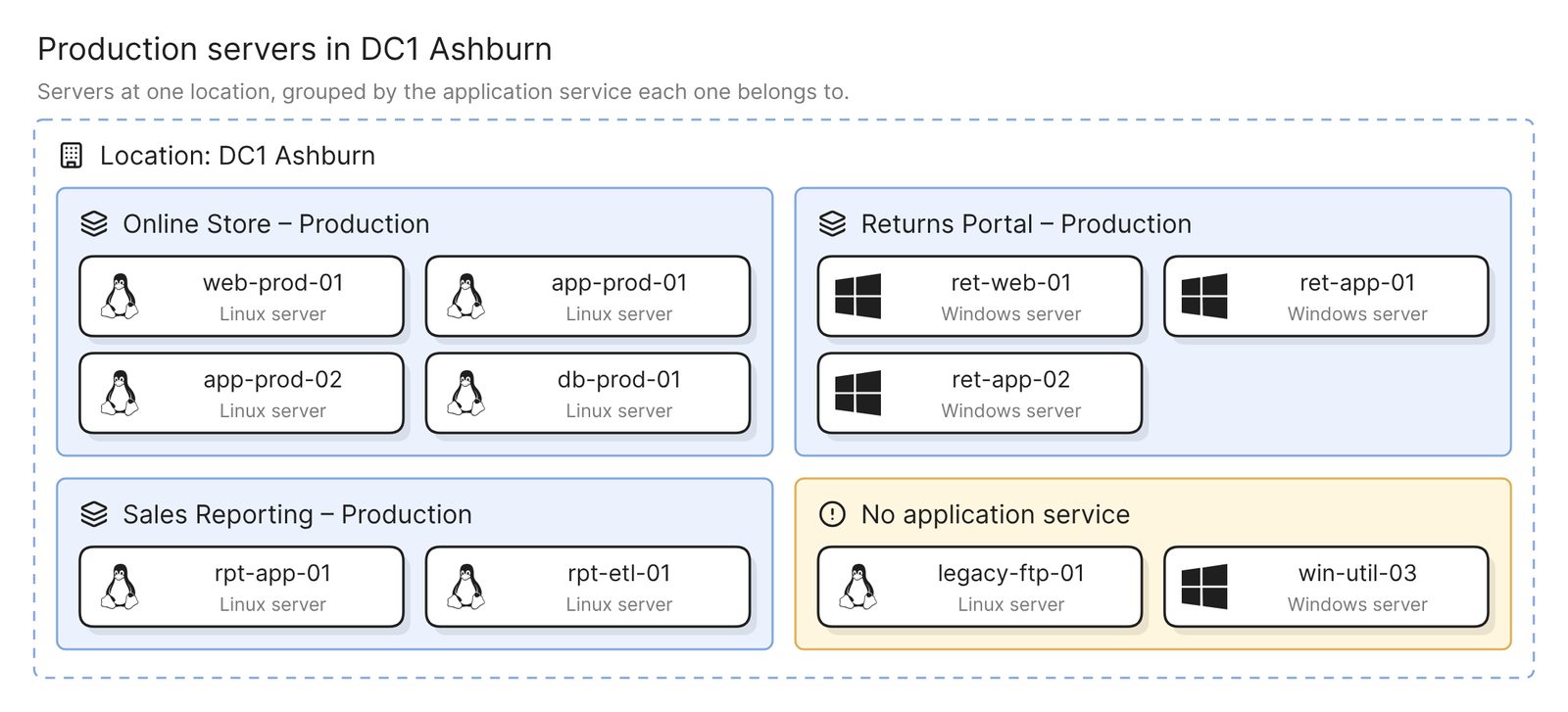 Example: the servers in one data center, grouped by application service
This is the map for a data center exit or a migration wave. The last group is the one to chase. Those servers are either unused or missing from every service in the CMDB, and you need to know which before the move.
A list instead of a picture
List every CI in the Online Store – Production application service as a
table, with its class, owner and support group
With the same model attached, AI chat can write a document instead of a diagram. Audits tend to ask for the inventory as well as the map.
Keep it current
The map reflects the last scan, and nothing scans on a schedule. After the CMDB changes, rescan the instance and regenerate the maps that matter.
A finished map can be shared with a link, embedded in Confluence or Notion, or exported as an image, a PDF or a Visio file. For a landscape people can click into, build a map from the same model.
To take access away, remove the connection in Eraser and deactivate the integration user in ServiceNow. Removing the connection changes nothing on the instance.
Other ways to visualize a ServiceNow CMDB
- Use the map views inside ServiceNow. As of November 2026, Dependency Views is “active in all instances”, opens from a CI record and shows three levels of relationships upstream and downstream by default. Unified Map, in CMDB Workspace and Service Graph Workspace, “combines some of the capabilities of Dependency Views and of Service Mapping into a single map experience”. They are the right choice for checking one CI during a change or an incident, without leaving ServiceNow. What leaves Unified Map is a PDF of the current view.
- Run ServiceNow Service Mapping. Service Mapping “discovers all application services in your organization” and maps the devices and applications each one uses. ServiceNow’s page says it “is available as a separate subscription”. It is the right choice when the relationships are not in the CMDB yet. Every other route on this page draws what service mapping and discovery have already recorded.
- Export the data and draw it yourself. ServiceNow exports list data as CSV, Excel, JSON and other formats, and the CMDB Query Builder queries CI classes together with the relationships that connect them. Drawing from an export gives full control of the layout and suits a one-off diagram of a small application. Nothing updates the drawing afterwards, and the Query Builder exports “only the results that are visible”, which is the first 100 until you load the rest. If the connection cannot be set up, Eraser can also build a model from an uploaded file.
FAQ
Does Eraser change anything in ServiceNow?
No. It reads the CMDB as an integration user that holds only read roles, and it refuses to connect as a user that holds any other role. Removing the connection leaves the instance as it was.
Can ServiceNow visualize the CMDB on its own?
Yes. As of November 2026, Dependency Views and Unified Map both open a map from a CI record. They show the relationships the CMDB holds, so they share the limit described in step 3.
Why is a CI or a relationship missing from my map?
There are four usual causes. It is not in the CMDB, it is retired, a filter on the connection leaves it out, or it changed after the last scan. Open the record in the model to see which.
Does the map update when the CMDB changes?
Not on its own. Rescan the instance, then regenerate the map.
Does this replace ServiceNow Service Mapping?
No. Service Mapping discovers application services and the CIs they use. This method draws what the CMDB already holds, so it shows whatever Service Mapping has found and does nothing to find more.
Where to go next
To sketch a target architecture before anything is connected, the architecture diagram generator draws one from a description. If the application is moving to the cloud, the same method draws the other side. See the guides to an AWS architecture diagram and an Azure architecture diagram. For reference targets, see an e-commerce app on Azure and a network diagram for disaster recovery.
For the ideas behind the map, the glossary covers the CMDB, how it differs from IT asset management, and the dependency graph, which asks the same question of code.