Guide
Azure architecture diagram: draw one from your live subscription
Connect a read-only app registration, scan your subscriptions and ask for the diagram you need: one network, one resource group or everything.
The Azure portal shows what you run as lists of resources, filed by resource group and subscription. An Azure architecture diagram has to cut across those lists. It shows which subnet an app sits in, which virtual networks are peered, and which database is reached through a private endpoint. Drawing it by hand means opening one resource after another to find out.
This guide starts from the subscription instead of a blank canvas. You connect it read-only, Eraser scans what is deployed, and you ask for the architecture diagram you need. Allow about fifteen minutes, most of it for one-time setup in the Azure portal.
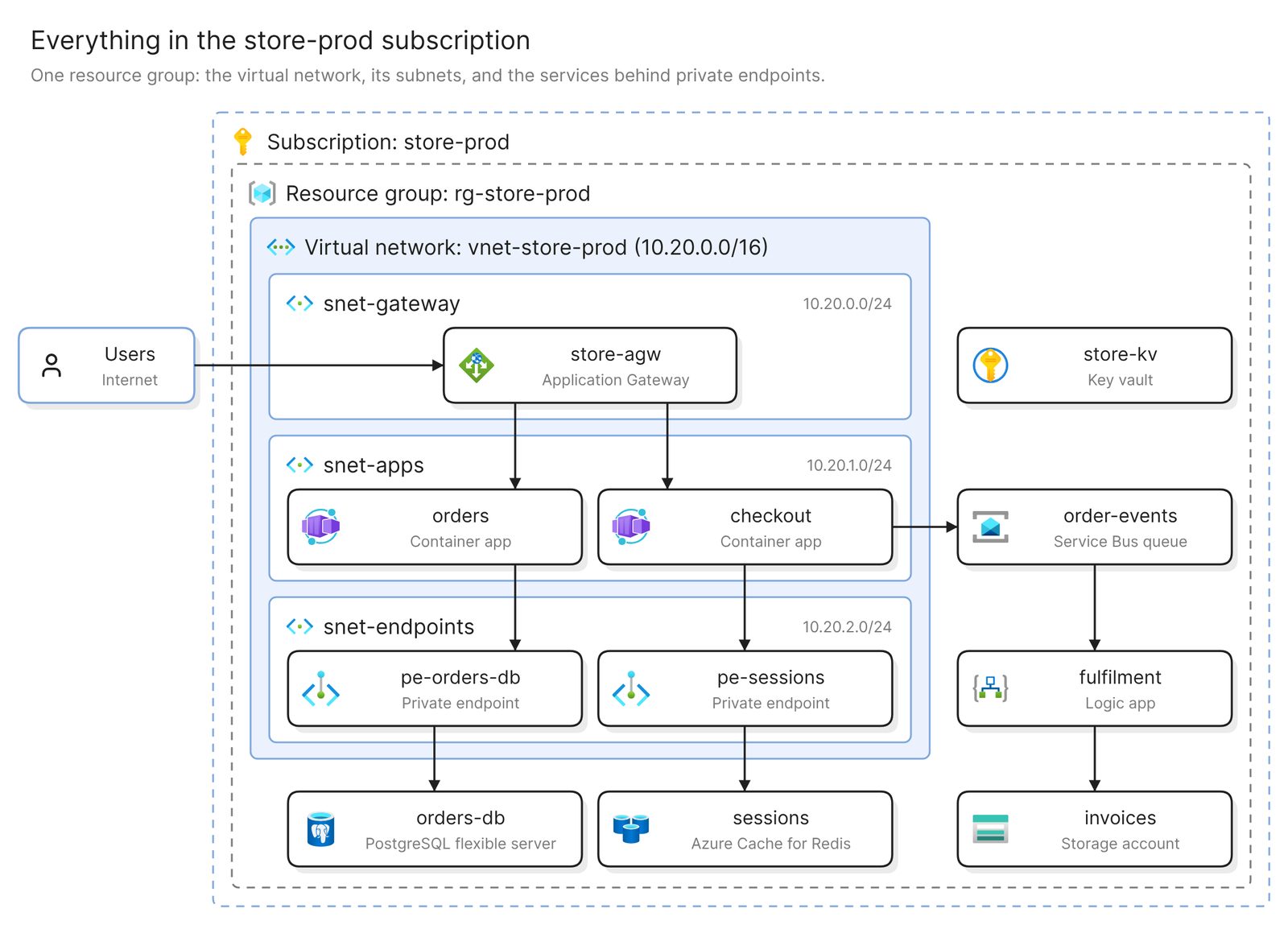 Example: one subscription, with its resource group, virtual network and subnets as nested groups
Before you start
You need two things:
- Access to Eraser
- Access to the Azure tenant, with permission to register an app and assign it a role
Eraser reads your environment through an app registration that holds Azure’s built-in Reader role and nothing else. Reader covers how resources are configured, and nothing inside your storage accounts, databases or key vaults. The scan also stops at the Azure resource: an AKS cluster appears as a cluster, and the workloads inside it need a different starting point.
Step 1. Connect the tenant
You register an app in Microsoft Entra ID, give it a federated credential and assign it the Reader role. No client secret is created, and Eraser refuses an app that holds any broader role.
The one decision is scope. Assign Reader on a single subscription, or once on the tenant root management group, which covers every subscription and any created later. You then pick which subscriptions to import, and the first scan runs.
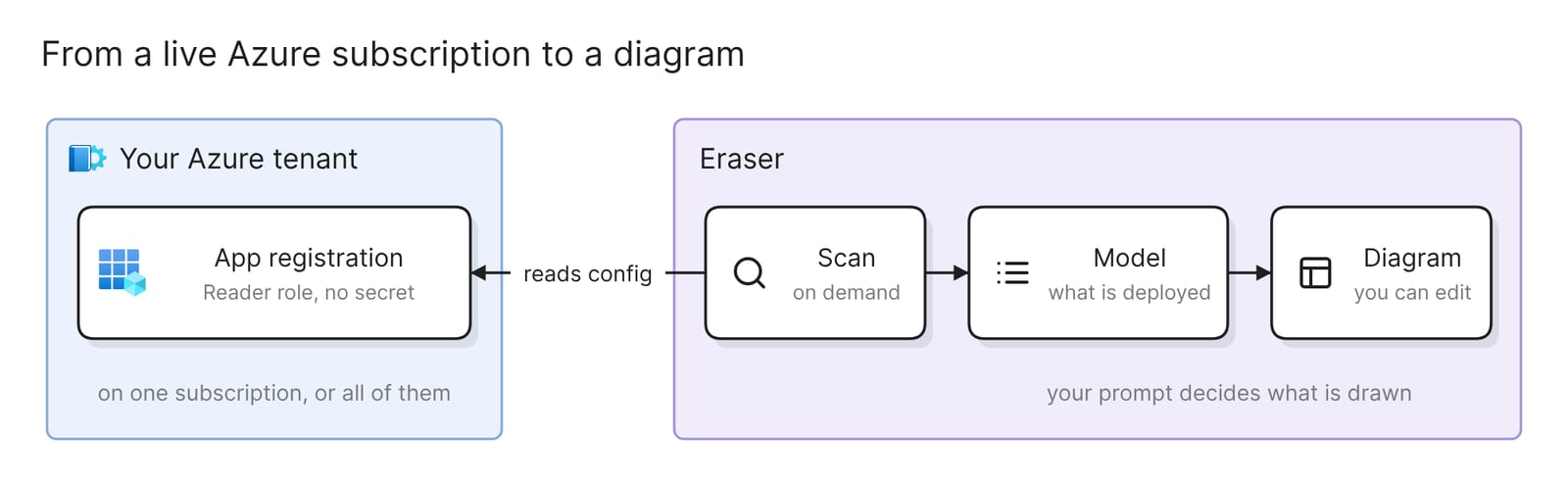 What the connection sets up, and what Eraser builds from it
Registering the app and assigning the role need different Azure permissions, so two people may each do a part. The docs have the click-by-click steps, and a script that does the Azure side from Cloud Shell.
Step 2. Ask for the diagram
The scan builds a model, an inventory of the resources it found and how they connect. Open AI chat, add the model as a reference, and say what you want in plain words. One model covers every subscription you imported, so name the one you mean:
Create an architecture diagram of the store-prod subscriptionEraser reads the model and draws what it found. The result is a diagram you can edit by hand or change with further prompts.
Check the nesting first. Azure groups resources by resource group and subscription, and anything on the network also sits in a subnet. Each box should be inside the right group, and each subnet inside its virtual network.
Then check the private endpoints. A database reached over a private endpoint stays outside the virtual network, and only its endpoint sits in your subnet. Microsoft’s guidance on diagrams says “don’t depict a PaaS service inside a subnet if it’s actually accessed over a private endpoint”. If orders-db shows up inside snet-endpoints, ask for it to be moved out.
Last, compare one resource group with its list in the portal. Anything created since the last scan is missing until you rescan.
Step 3. Narrow it to the diagram you need
A whole subscription is a fair first test, and past a few dozen resources nobody can read it. Each prompt below asks the same scan a narrower question.
An Azure network diagram
Show the network topology of my Azure subscriptions: virtual networks
with their subnets, peerings, gateways and private endpoints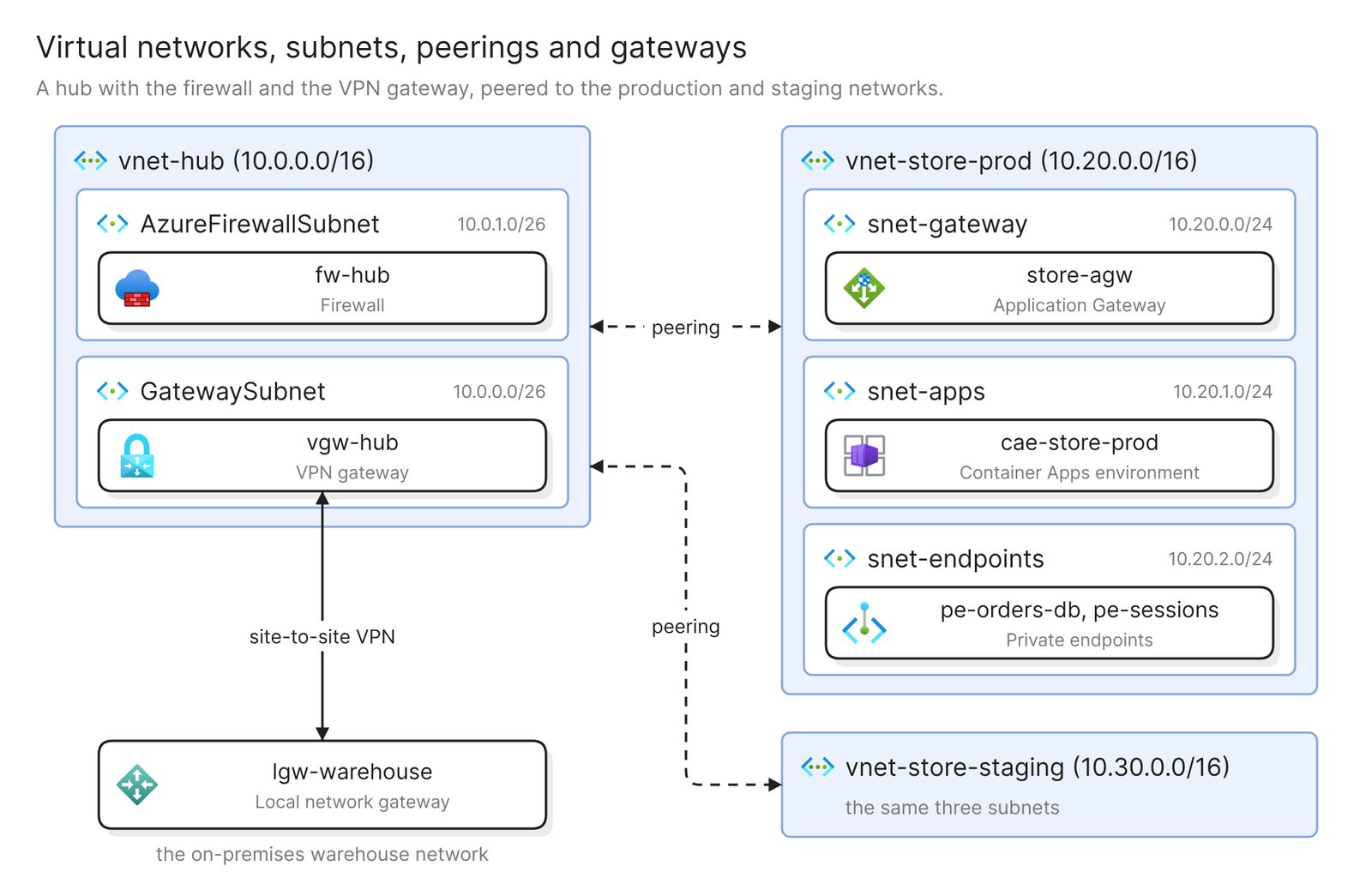 Example: a hub virtual network peered to two spokes, with the VPN gateway that links the warehouse
Reach for this one before a network review or a firewall change. It leaves out the apps and shows address ranges, peerings, and where traffic enters and leaves.
Check the peerings against what you expect. In a hub-and-spoke network, Azure peerings are nontransitive, so two spokes that share a hub cannot reach each other through the peerings alone. A landing zone also keeps the hub in its own subscription, so make sure that one was imported too.
One resource group
Diagram the rg-store-prod resource group: every resource in it and how
they connect
A resource group usually holds resources that are deployed, updated and deleted together, which makes this the view for a README or a handover.
One workload
Diagram the checkout service: everything it calls and everything that
calls it, across resource groups and subscriptions
A workload rarely stays inside one resource group. This prompt follows its dependencies wherever they are filed, which makes it the diagram to hand a new engineer or open during an incident.
What can reach a database
Show what can reach orders-db, and whether each path is private or
public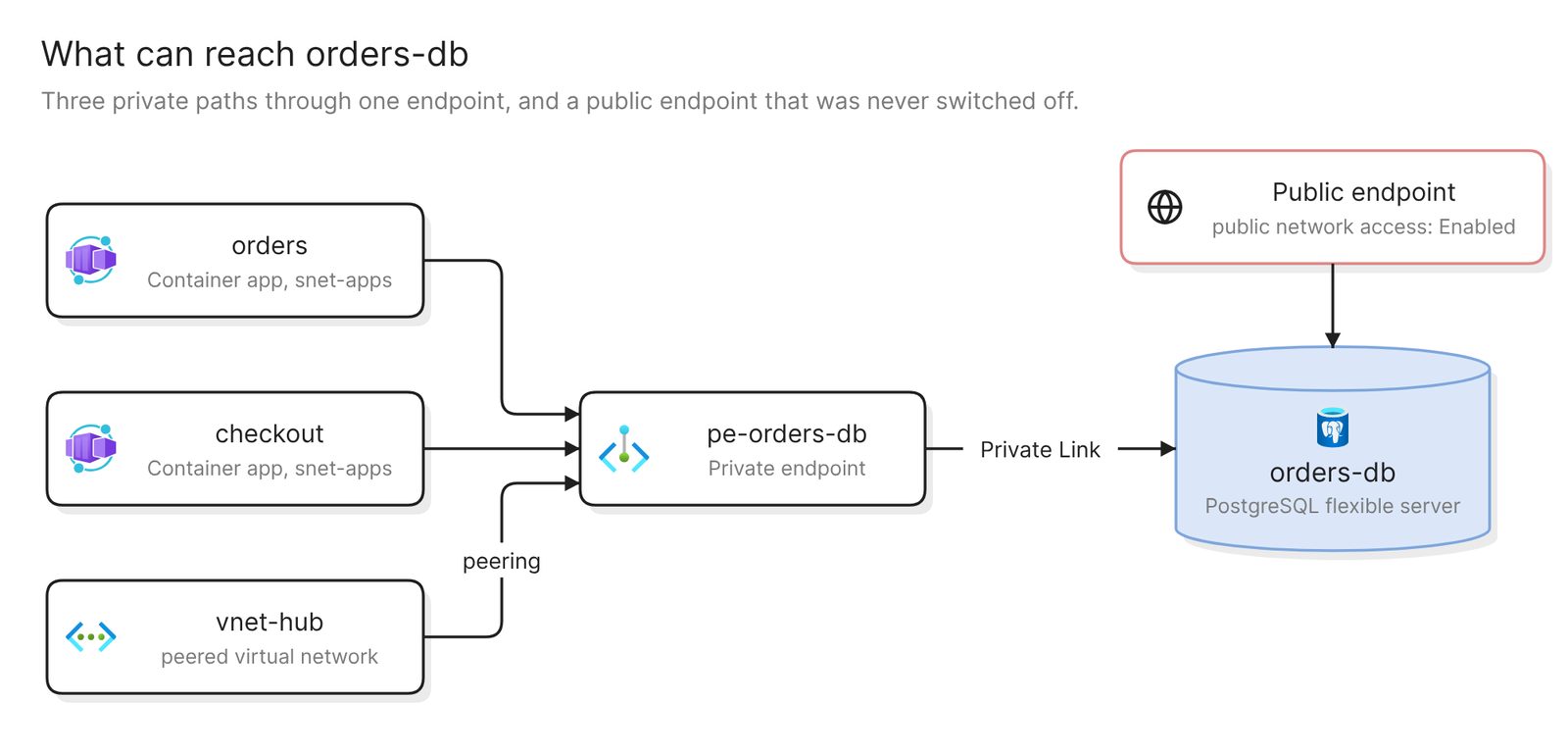 Example: every path to one database, with the public endpoint that should be closed in red
Security reviews start here. A private endpoint can be reached from its own virtual network, from peered ones and from on-premises networks connected to them. Adding one does not close the public route by itself. Microsoft notes that private endpoints “don’t necessarily restrict public network access” to the service.
From any of these, keep prompting to add a service, drop a subscription or regroup, or apply your team’s styles.
Keep it current
The diagram reflects the last scan. Nothing scans on a schedule, so after a deploy, rescan the connection and regenerate the diagrams that matter. For a freeform diagram you have edited by hand, Eraser can instead verify it against the model, which lists every issue and changes nothing.
A finished diagram can be shared with a link, embedded in Confluence or Notion, or exported as an image, a PDF or a Visio file.
To take the access away, remove the connection in Eraser, then delete the app registration and its role assignment in Azure. Removing the connection alone leaves both in place.
Other ways to make an Azure architecture diagram
- Use the views in the Azure portal. As of November 2026 there are two. The Resource visualizer shows the connections between the resources in one resource group, and Network Watcher topology draws network resources across subscriptions and downloads as an SVG. Both suit a quick look with nothing to set up. The first stops at the resource group, and the second supports a fixed list of resource types with no databases or storage accounts on it.
- Draw it by hand with the official icons. Microsoft publishes Azure architecture icons as SVG files, not as Visio stencils, and draw.io has an Azure shape library and templates. Choose this for an architecture that exists only as a proposal. Once it is deployed, keeping the drawing in step with the subscription is manual work.
- Write it as code. The Bicep Visualizer in VS Code shows the resources defined in a Bicep file, and the open-source Diagrams library draws Azure nodes from Python. Microsoft’s azure-resource-visualizer skill has a coding assistant generate Mermaid diagrams from a resource group. These suit teams that keep diagrams in version control, and the first two show what a file declares, which can differ from what is running.
For other tools that read a live subscription, see Best cloud diagram tools in 2026.
FAQ
What access does Eraser need to my Azure subscription?
An app registration that holds only the built-in Reader role, on one subscription or the whole tenant. Reader covers configuration and nothing stored in your storage accounts, databases or key vaults. No client secret is created.
How do I make an Azure network diagram?
Use the same scan and ask for the network: virtual networks, subnets, peerings, gateways and private endpoints. Import every subscription that holds a peered network first, since the hub often lives in its own.
Is there an Azure diagram tool from Microsoft?
For resources that already exist, the portal has the Resource visualizer for one resource group and Network Watcher topology for networks. For a new design, Microsoft publishes the official icons as SVG files for use in any drawing tool.
Does the diagram update when my infrastructure changes?
No. A diagram shows the scan it was drawn from, and scans run when you start one. Rescan, then regenerate.
Where to go next
If you would rather start from a description than a subscription, the Azure diagram generator turns a written prompt into a diagram. If the environment is defined in code, Terraform architecture diagram starts from the files instead, and the AWS guide covers the same method on AWS.
For reference architectures to compare yours against, see a basic web app on Azure, an e-commerce app on Azure and the baseline architecture for AKS. The glossary’s cloud computing architecture page covers the concepts underneath.