Guide
Claude Code diagrams: draw your codebase with an MCP server
Add Eraser's MCP server to Claude Code, ask for a diagram of the code it is working in, and get an editable file the agent can update later.
A coding agent reads a lot of your codebase to do its work, and little of that understanding outlives the session. Ask Claude Code for a diagram and you get ASCII boxes in the terminal or a block of Mermaid, which is fine for a glance and hard to hand to anyone else.
This guide gives the agent a place to draw. You add Eraser’s MCP server to Claude Code, ask for an architecture diagram of the code it is working in, and get a file in your Eraser workspace that you can edit and the agent can update later, all from the terminal. It takes about five minutes.
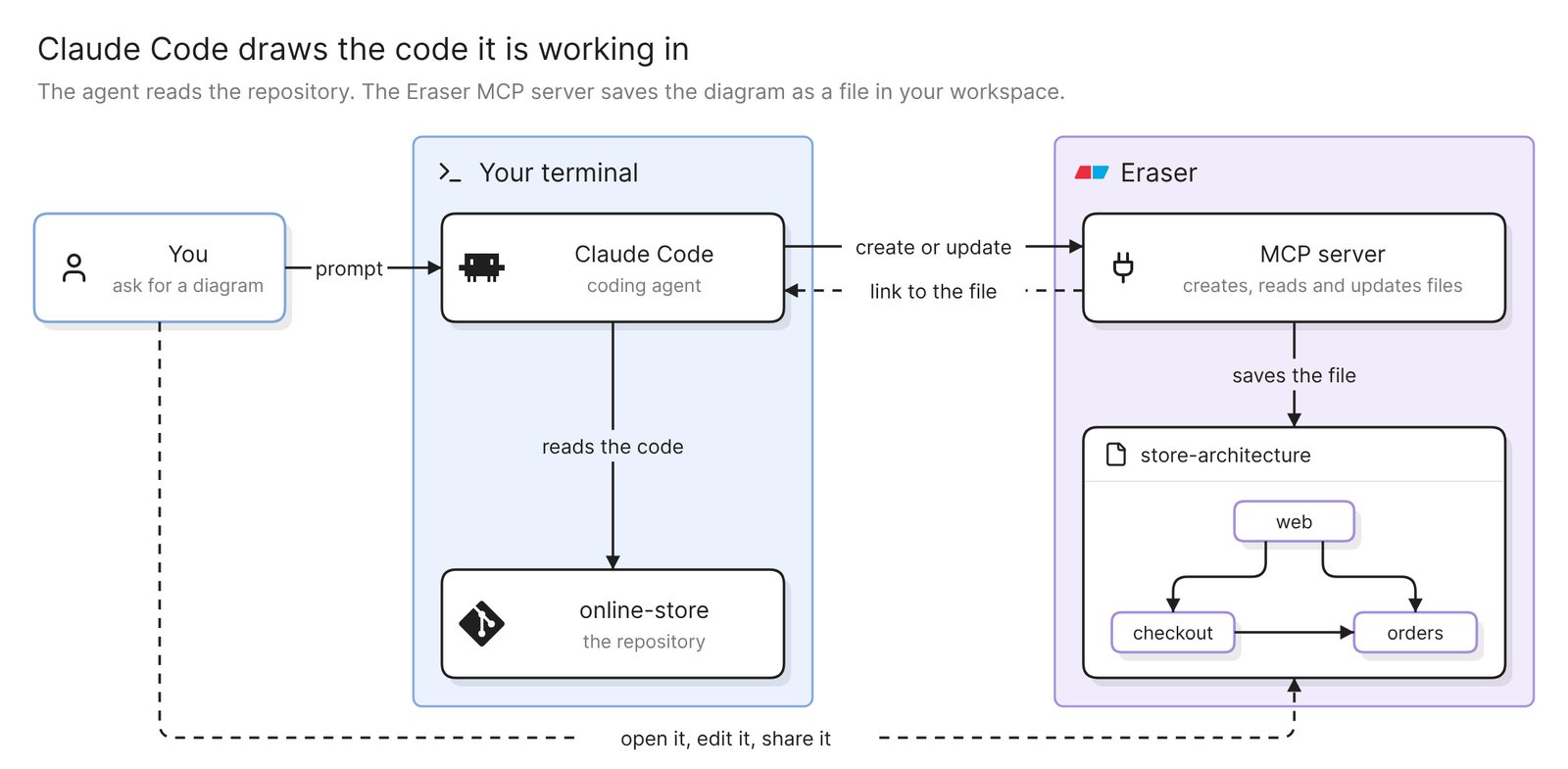 Example: Claude Code reads the code, and the Eraser MCP server saves the diagram as an editable file
Before you start
You need two things:
- Access to Eraser
- Claude Code, running in the repository you want to diagram
The agent does the reading. It draws from the files it opens and the commands it runs, so what is deployed, or a service in another repository, is missing unless you point the agent at it.
Step 1. Add the Eraser MCP server
One command connects Claude Code to Eraser’s MCP server:
claude mcp add --transport http eraser https://app.eraser.io/api/mcpAs of November 2026, Claude Code stores a server in one of three scopes. The default keeps it private to you in the current project. --scope project writes it to a .mcp.json file the team can commit, and --scope user puts it in all your projects.
The server uses OAuth, so there is no key to copy. The first time you connect, you authorize your Eraser account in the browser, and in Claude Code the /mcp command starts that sign-in. The docs have the details, and the setup for the other agents the server supports: Claude on claude.ai, ChatGPT, Cursor, Codex, VS Code, GitHub Copilot, Kiro and Microsoft Copilot Studio.
Step 2. Ask for a diagram of what the agent has read
Ask after the agent has worked in the code, when the files are already in its context. In a new session, tell it what to read first:
Read docker-compose.yml and the code under services/. Then use Eraser to
create an architecture diagram of what runs and how the pieces call each
other. Use the names from the code. Tell me which files you drew from, and
leave out anything you cannot find in them.
The agent can send a description for Eraser’s AI to draw, or write the diagram code itself. Either way the diagram lands in a file in your Eraser account, and the agent passes back a link that opens it in the editor. There you can drag things around, edit the code or ask for changes in words.
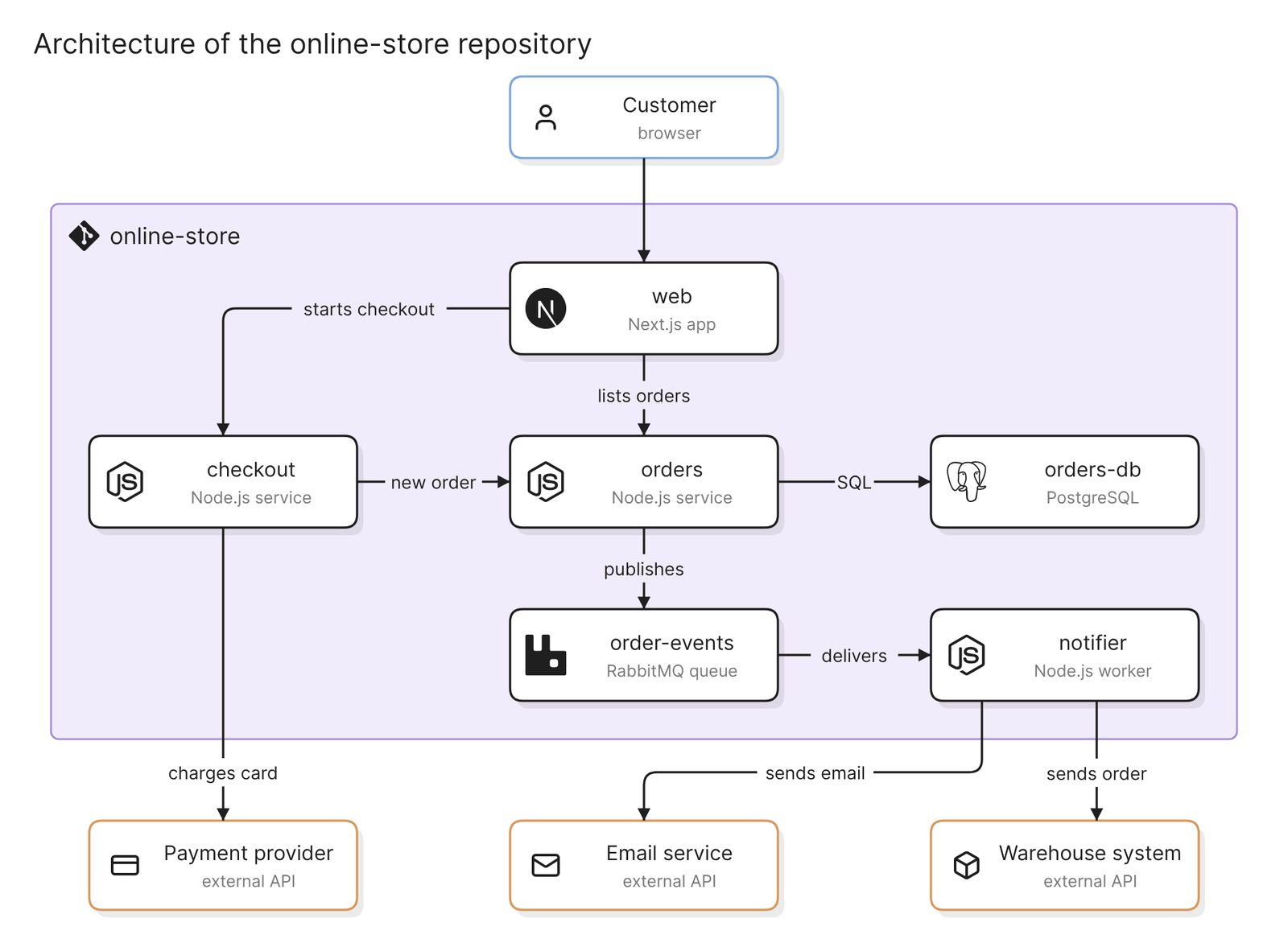 Example: an architecture diagram an agent might draw from a compose file and a services folder
Step 3. Check it against the code
An agent fills gaps with what a system like yours usually has, and in a diagram every box looks equally certain.
Start with the file list. If the compose file or the infrastructure folder is not on it, the parts of the diagram that depend on them are guesses.
Then read the names. Boxes should carry the names in the code, such as orders and orders-db. A box called “Order Management Service” that matches nothing in the repository was written from habit.
Last, look for parts that are common in systems like yours and absent from the code, such as a cache or an API gateway. Each arrow should trace to a call or a connection string the agent can point to.
A follow-up prompt does most of this:
For every box and arrow in that diagram, name the file that shows it.
Remove anything you cannot point to, and list what you were unsure about.
Step 4. Update the same diagram after a change
When the code changes shape, ask for an edit to the existing diagram. The server lets the agent read a diagram’s code and edit it in place, so the file people already have a link to stays the current one.
This branch adds a refunds service. Update the store-architecture diagram
in Eraser to match. Add refunds and the calls it makes, and change nothing
else. Do not create a new diagram.
A later session may not know which file it made, so name the file or paste its link. The agent can also search your workspace for it.
Other diagrams to ask for
One request path
Trace what happens when a customer submits the checkout form, from the
route handler to the database write. Create it in Eraser as a sequence
diagram, using the service and function names from the code.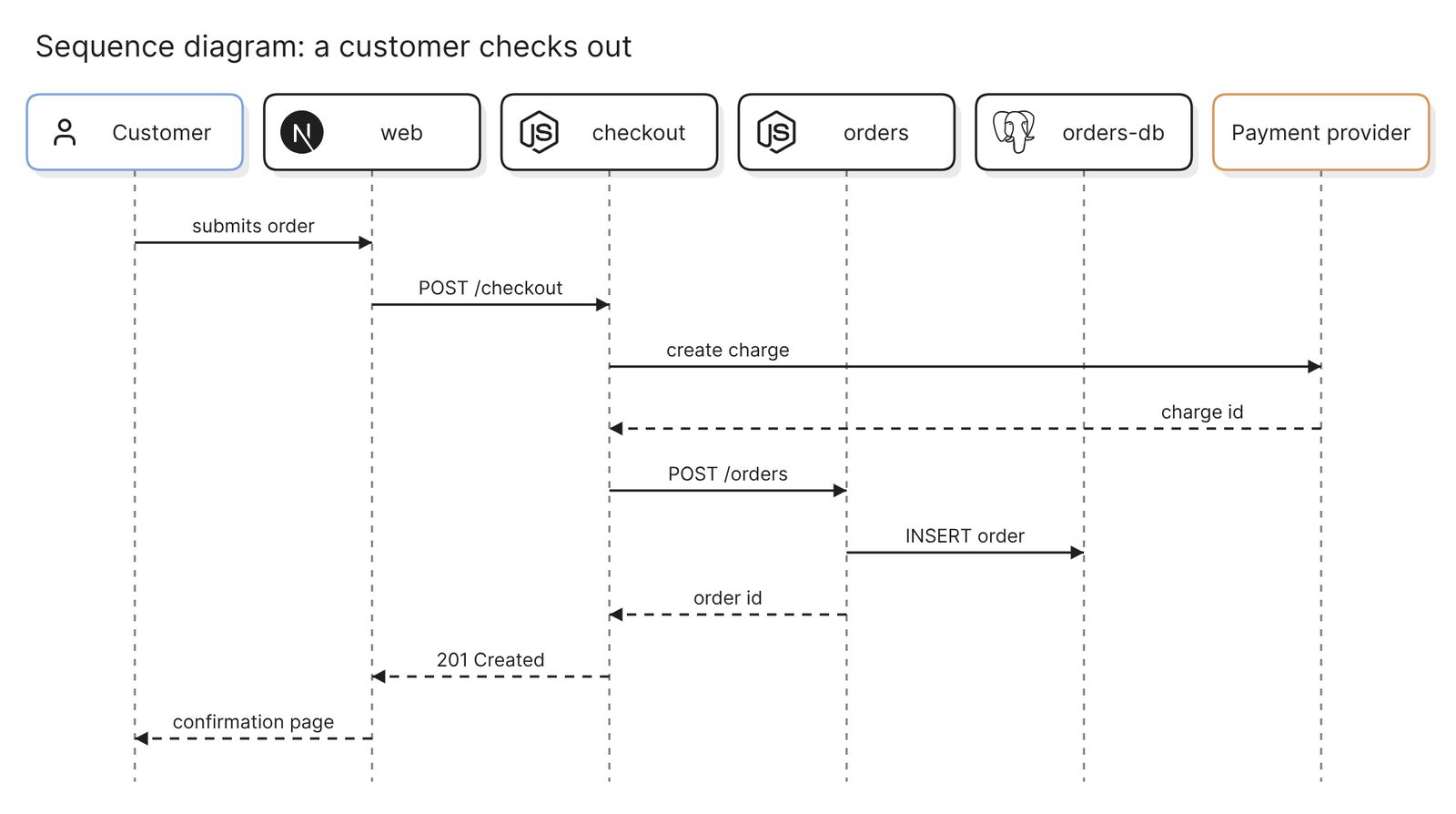 Example: a sequence diagram of one checkout request
A sequence diagram of one path suits a code review or an incident write-up. Check the order of the calls against the handler.
The data model
Read the migrations in db/migrations and create an entity relationship
diagram in Eraser with the tables, their keys and how they relate.
Migrations are a history, so ask for the schema they end at. A table dropped in a later migration should not appear in the entity relationship diagram.
The change in this branch
Compare this branch with main. Create a diagram in Eraser of what the
change adds and what it touches, then export it as a PNG I can put in the
pull request description.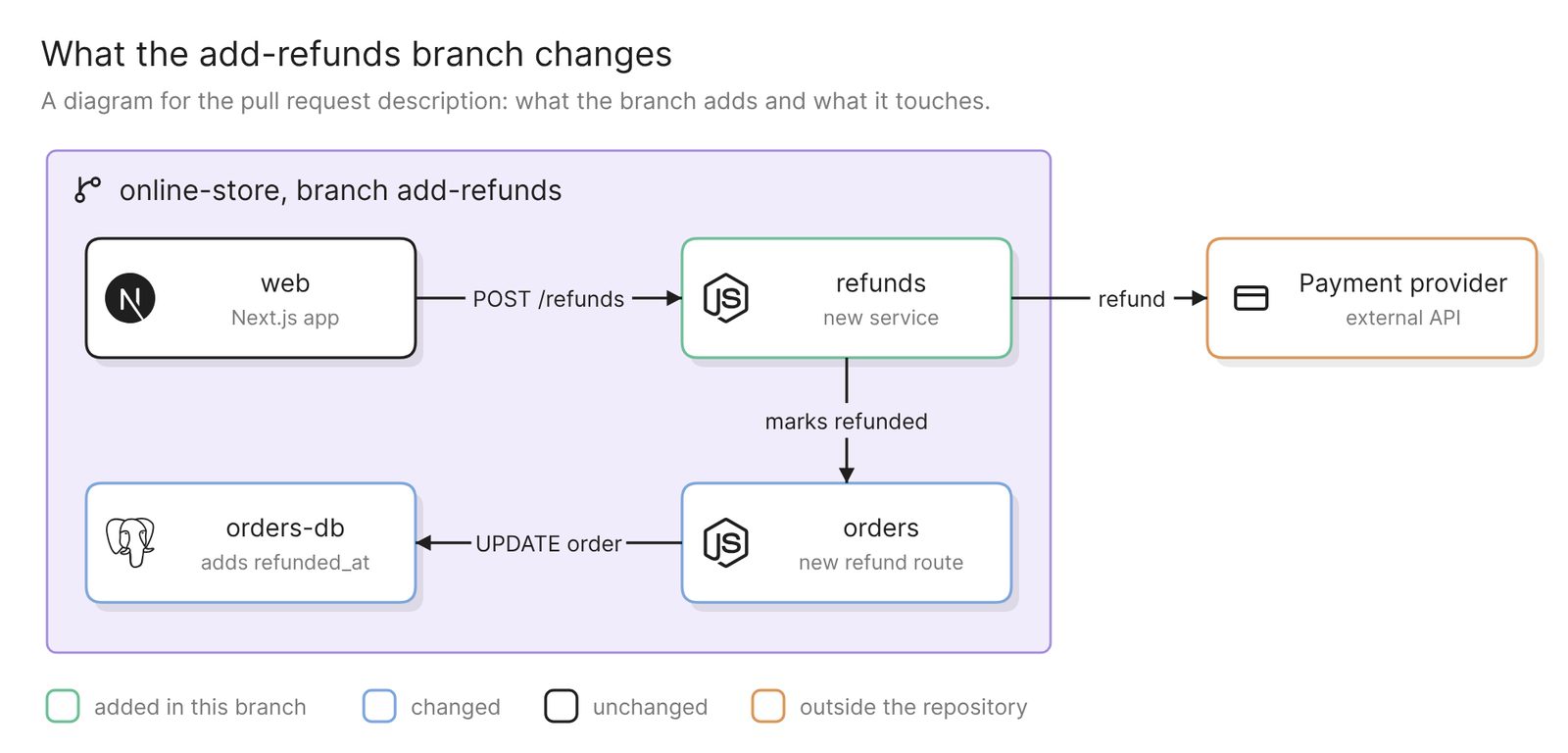 Example: what one branch adds and touches, for a pull request description
Reviewers see the shape of the change before the diff. The server exports diagrams as images, so the agent can hand you the picture with the link to the file.
Keep it current
Nothing redraws these diagrams on its own, so make the update request part of the work. Each Claude Code session begins with a fresh context window, and a CLAUDE.md file in the repository is loaded at the start of every one. A line there with the diagram’s link puts the reminder in front of the agent each time.
For a diagram that should be redrawn on every pull request with nobody asking, Eraserbot watches the files you choose.
A finished diagram can be shared with a link, embedded in your docs or exported.
Other ways to get diagrams from a coding agent
- Have the agent write Mermaid in a Markdown file. Mermaid is a text syntax for diagrams, and GitHub renders it in Markdown files, issues and pull requests. It is the right choice when the diagram should live in the repository and be reviewed with the code. You change it by editing text, and GitHub advises checking which Mermaid version it runs before relying on newer syntax.
- Use another diagramming MCP server. Claude Code adds any MCP server with the same
claude mcp addcommand. If your team keeps its diagrams in another tool that has a server, that one fits better. Best diagramming MCP servers in 2026 compares them. - Ask Eraser directly. Eraser’s own AI reads a connected repository and draws from a prompt, which suits someone who does not work in a terminal. How to generate C4 diagrams from a GitHub repo walks through it.
- Install the Eraser agent skill. It is a lighter setup in which the agent writes Eraser’s diagram syntax and gets a rendered image back. The docs cover it.
FAQ
Does this work with Cursor, Codex or GitHub Copilot?
Yes. The server is the same for every agent, and Step 1 lists the ones Eraser documents.
Can ChatGPT make a diagram of my code?
Yes, in two ways. Like any chat assistant, it can write diagram code such as Mermaid for you to render elsewhere, and OpenAI’s own guide has it draw a flowchart as an image, which leaves no boxes to move by hand. For a diagram you can edit, Eraser’s MCP server connects to ChatGPT too.
Where do the diagrams go, and who can see them?
They are saved to your Eraser account. With the OAuth sign-in, files are created under your identity and are private by default. You can change who has access in the app, or ask the agent to.
Can this run in CI, with nobody there to sign in?
Yes. The server also accepts an API key, for pipelines and other runs with no person present. Requests made with a key are attributed to the team as a whole.
Where to go next
To see what Eraser draws from a repository with no agent involved, try the Git diagrammer. The agent integrations page and the MCP catalog show the clients the server connects to. Integrations covers the other tools Eraser plugs into.
The glossary explains diagram as code. For reference diagrams, see Docker build sequence and the eCommerce website data model. For what teams build on this, see MCP diagram automation: 4 real-world use cases. If the repository holds an agent of its own, this guide covers its architecture diagram.